

Description
Expected Outcome
Escalation Criteria
Additional Notes
Users may notice that the “Outcome” option is not visible in the Scheduler when managing appointments.
This typically occurs when the Outcome has not been configured under the Appointment Reason settings in the system. Without specifying the appropriate outcome in the configuration, the Scheduler will not display the Outcome field during appointment handling. Template for KB Article
Follow the steps below to configure the Appointment Reason and enable the Outcome option:
1. Open Environment Settings- Navigate to Environment Settings.
- Select Scheduler Settings.
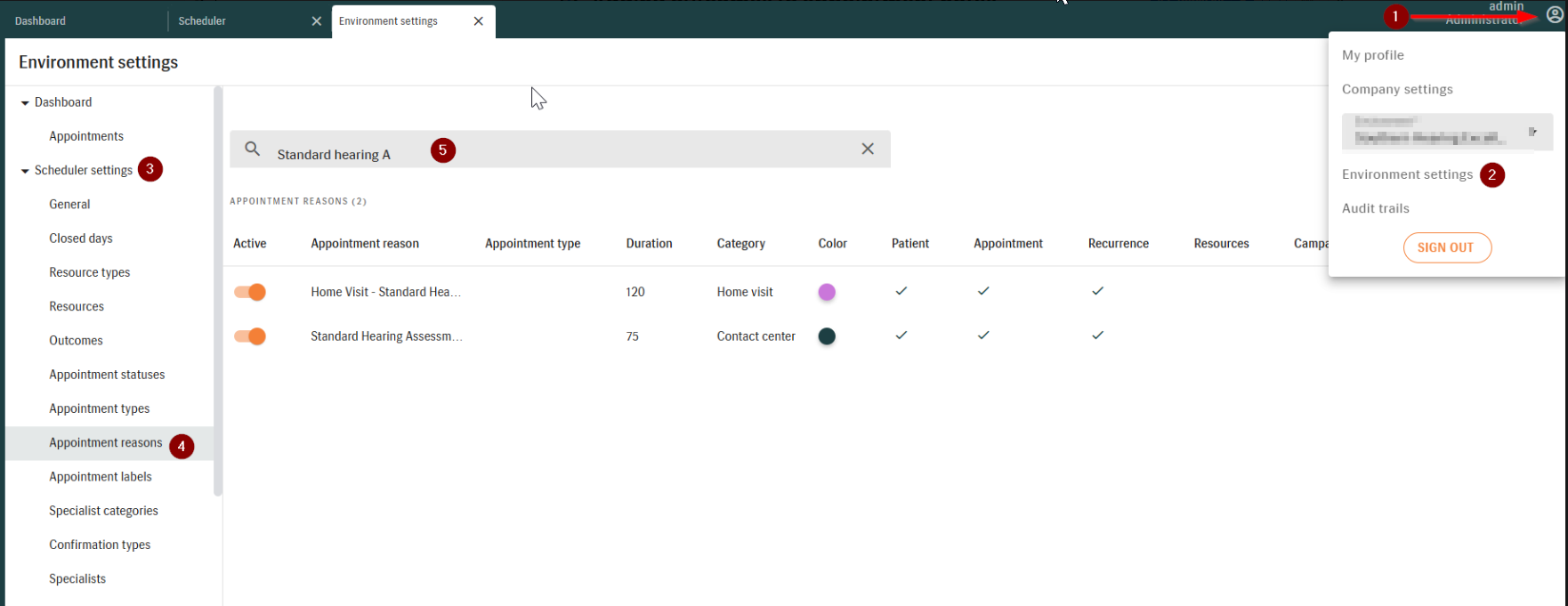
- Click Appointment Reason.
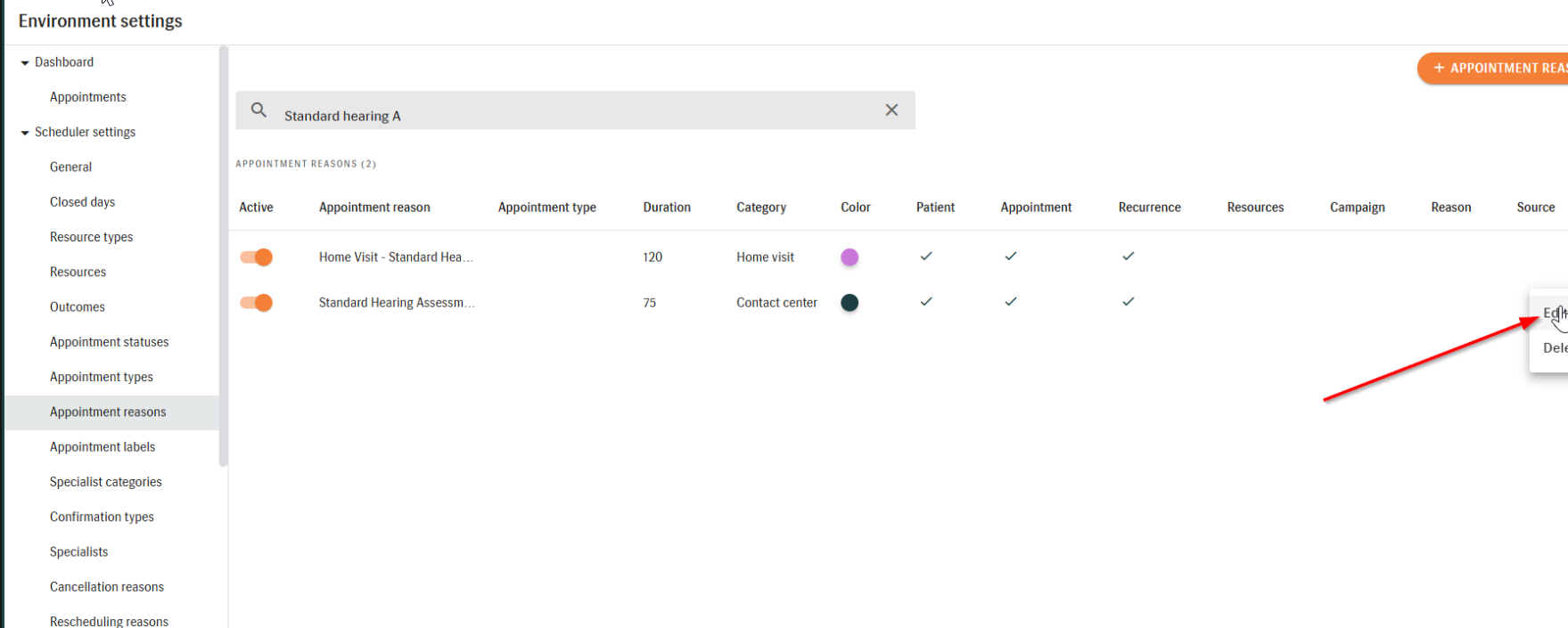
- Locate the Appointment Reason you want to configure.
- Click Edit.
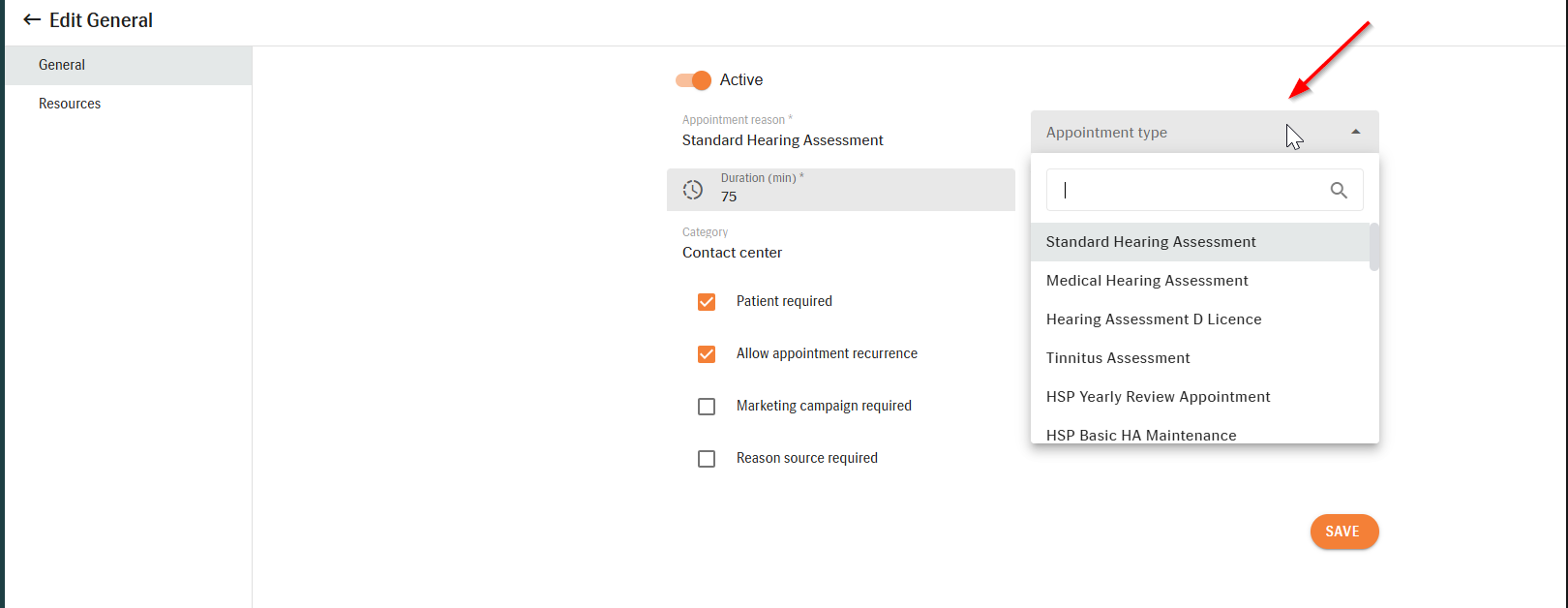
- Ensure that the Appointment Reason corresponds to the correct Appointment Type.
- Select and define the Outcome that should be used for this appointment type.
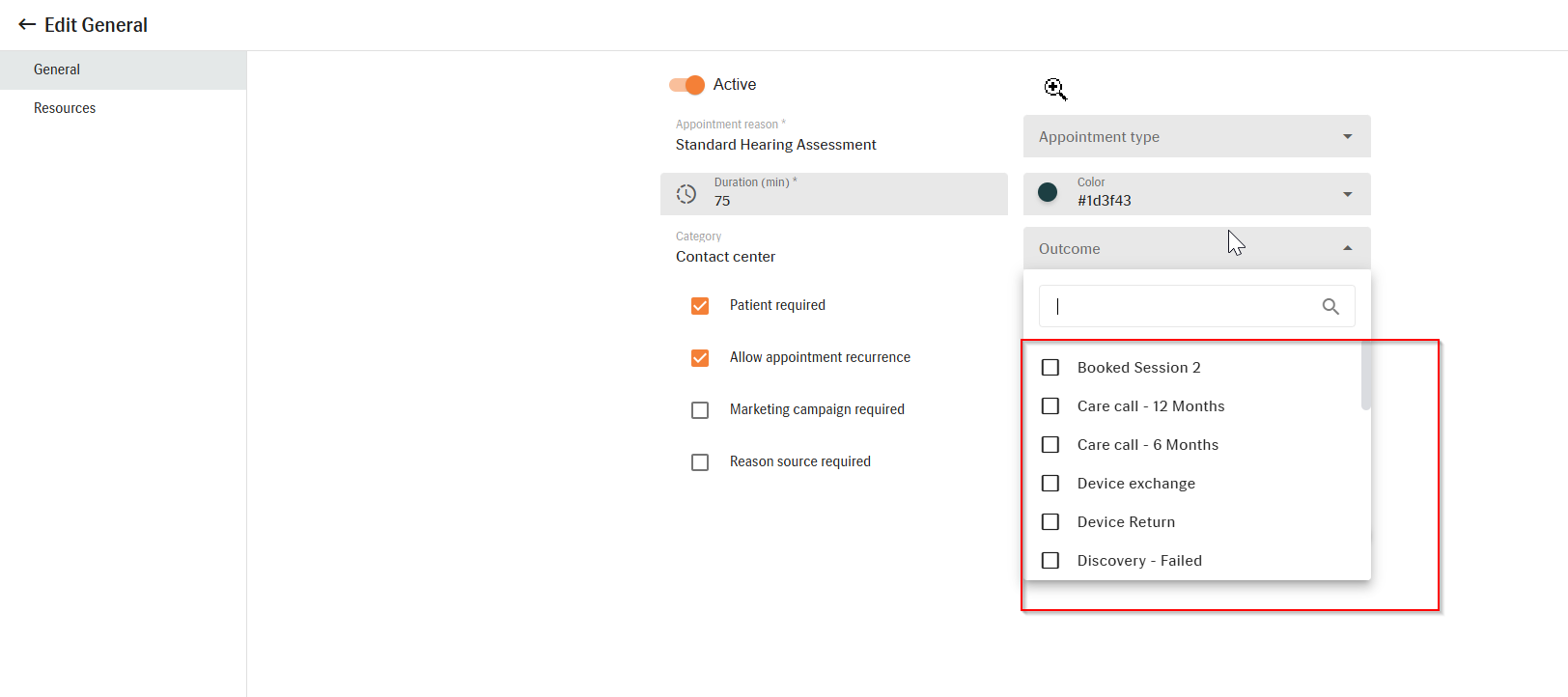
- Click Save.
- Refresh the browser tab or
- Close and reopen the Scheduler.
Expected Outcome
After completing the configuration:
- The Outcome option will appear in the Scheduler when managing appointments associated with the configured Appointment Reason.
- Users will be able to select or assign the appropriate outcome during appointment handling.
Escalation Criteria
Escalate the issue to second-level support if:
- The Outcome field still does not appear in the Scheduler after completing all steps.
- The Appointment Reason configuration cannot be edited or saved.
- The system displays unexpected errors when saving the configuration.
For escalation, provide the following information:
- Environment name
- Appointment Reason configured
- Screenshots of the Scheduler and Appointment Reason settings
- Steps already attempted
Additional Notes
- Ensure you have Administrator access to modify Environment and Scheduler settings.
- Changes may require refreshing the Scheduler or logging out and back into the system before they appear.
- Incorrect Appointment Type configuration may prevent the Outcome option from displaying.