

When using Clinical AI Scribe in Auditdata Manage, it’s important for users and IT to be aware of a few key settings to avoid microphone issues. Even if you select a microphone in Manage, your browser and PC settings can prevent it from working correctly.
Table of Contents
-
- Check Windows Microphone Settings
-
- Check Your Browser Permissions
-
- Check Manage Permissions
-
- Troubleshooting Tips
1. Check Windows Microphone Settings
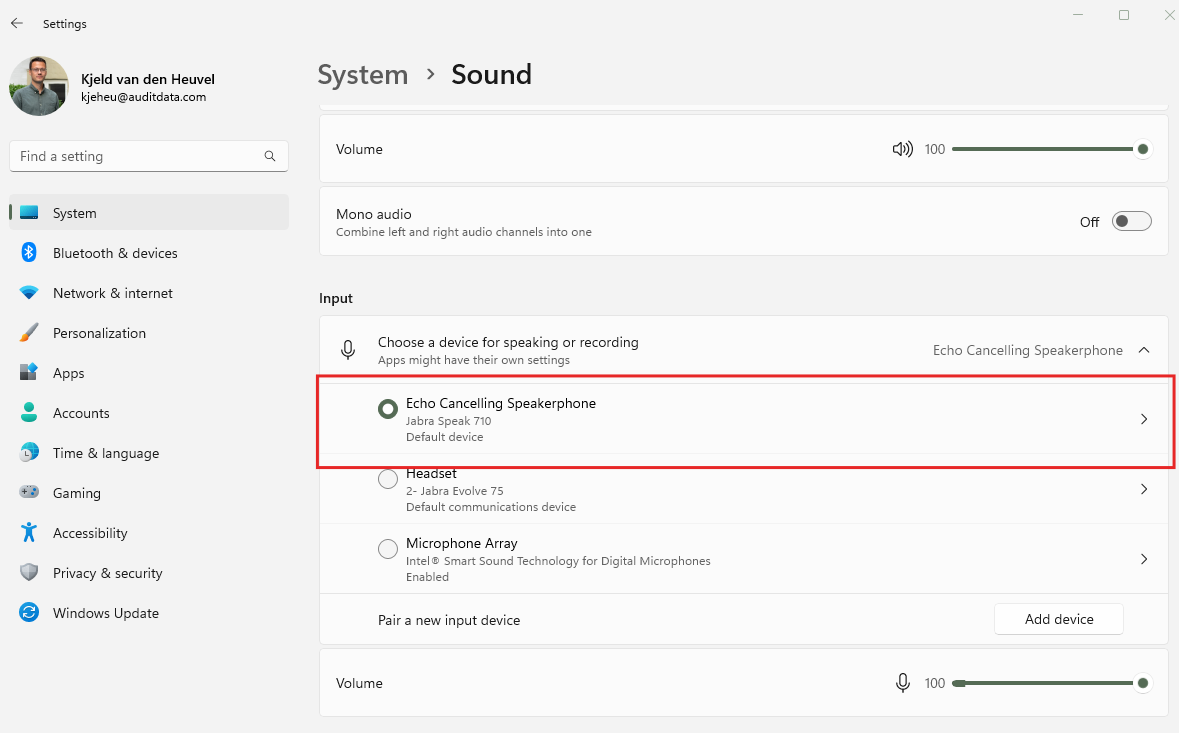
Even if your browser has permission, Windows will show which Input devices are connected:
- In Windows 11 go to Settings → System → Sound scroll to Input.
- Ensure the correct microphone is available and that it’s working properly. It sdeos not need to be selected.
- Adjust the volume and test the device.
2. Check Your Browser Permissions
Most users access Manage via Google Chrome. Keep in mind:
- Chrome does not always automatically use your PC’s microphone. So check the settings.
- Make sure the browser has permission.
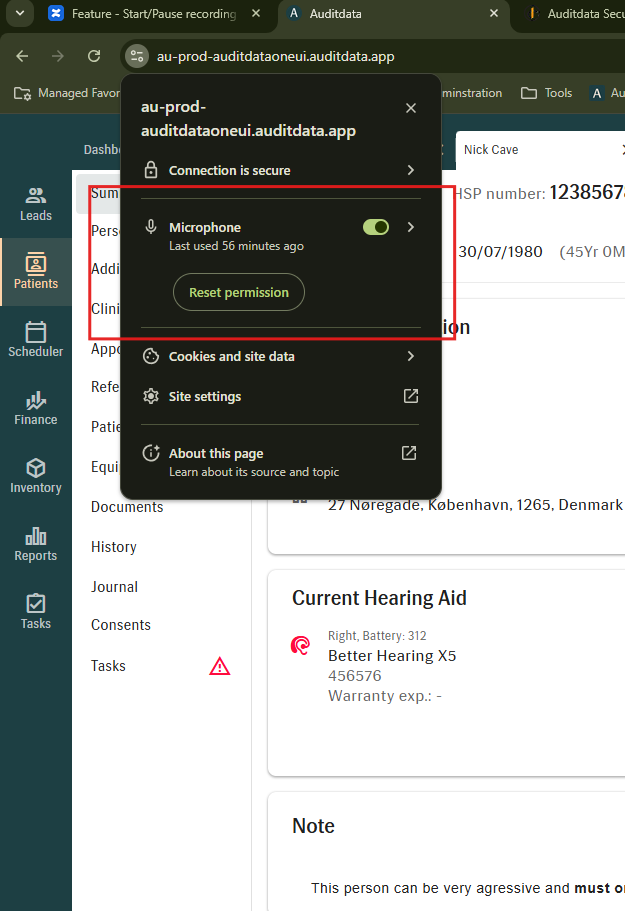
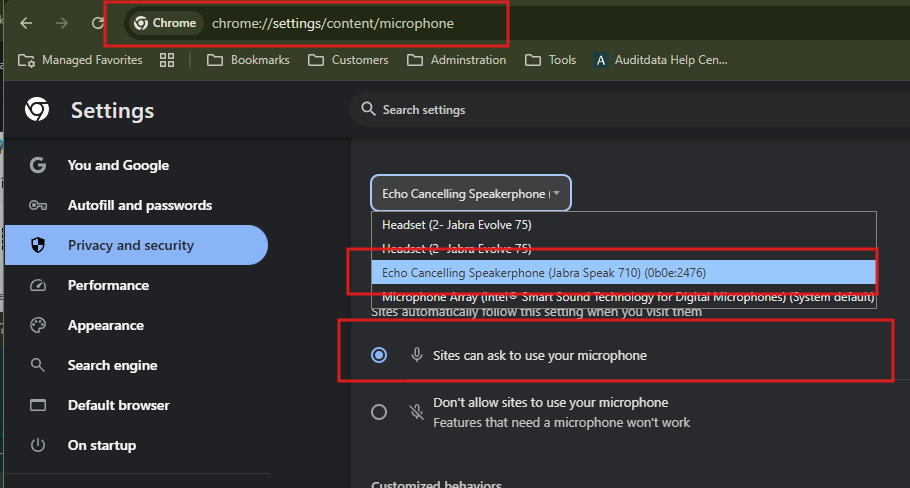
- Secondly you must check if recognizes the right microphone
- You can check this under Chrome’s permissions by clicking the Micrphone icon in the address bar → Privacy and Security → Microphone or use the address chrome://settings/content/microphone
3. Check Manage Permissions
Within Manage:
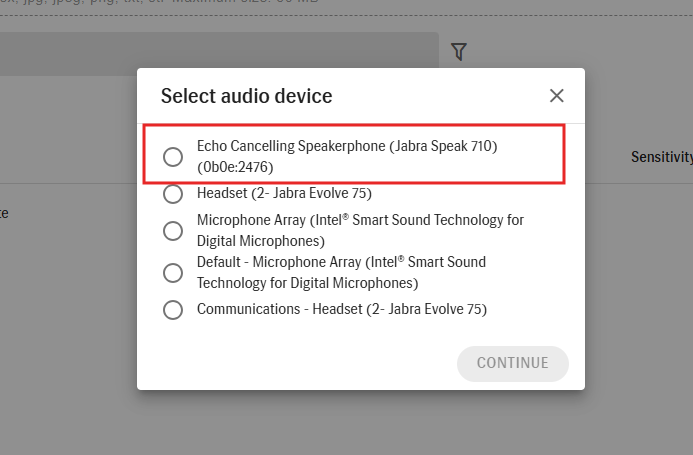
- Make sure the correct microphone is selected in the Clinical AI Scribe interface.
- Selecting a microphone in Manage is not enough. When the browseris connected to the right microphone, it appears as the first Option
4. Troubleshooting Tips
For IT managers and AD Support:
- Verify all three levels: Manage, Chrome, and Windows.
- Guide users through granting permission at each level.
- Test the microphone before a session to avoid interruptions.
- Remember, granting Manage permission alone is not enough; it must align with Chrome and Windows settings.