

Service Items Not Eligible for E-Claiming: The following service items are currently not eligible for e-claiming:
- Service# 4: Remote Control (Manufacturer's invoice amount < $200)
- Service# 1: Device Returned to Provider: Monaural – Half Cost of the Fitting Item (No Maintenance Agreement)
- Service# 2: Devices Returned to Provider: Binaural – Half Cost of the Fitting Item (No Maintenance Agreement)
- Service# 3: BTE Returned to Provider: Dispensing Fee
- Service# 6: Miscellaneous Claim – Only claimable when pre-approved by the program
Steps to Submit a Manual Claim:
1: Locate the Patient Sale/Claim
- Go to Patient Sale click + Sale

2: Verify Key Details Ensure the following details are correctly linked to the claim:
- Appointment Date
- Location
- Specialist
3: Confirm Payer Allocations
-
Under the Payers section, verify that the following information is accurate:
-
HSP Voucher Number
- Voucher Expiration Date
4: Add the HSP Service Item products
- Under the Products
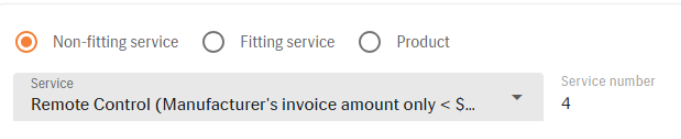
section, add the manual service items for example for item 4 , select Non Fitting Service and search " Remote Control (Manufacturer's invoice amount < $200)"
5: Confirm HSP Details
-
In the HSP Details section:
-
Claim Date must align with the appointment or service date.
- Ensure Audiogram Date and 3FAHL Data are accurate.
6: Mark the Claim as Manual
- After adding the required items, go to the HSP Details section.
- Select the checkbox to mark the claim as a manual claim

Step 7: Complete the Certification
- Complete the Certification section.
- If needed, create a Quote (manual claims may not always require a quote, but the option is available).
- Once all details are confirmed, click on Invoice.
Step 8: Change the Claim Status
- Change the claim status from DRAFT to Ready to Send, then to Sent.
Step 9: Submit the Claim via the HSP Portal
-
Log in to the HSP Portal and manually submit the claim.
-
Important Reminder: For detailed instructions on how to submit a manual claim, refer to the HSP Portal User Guide.
Step 10: Monitor Claim Status
-
After the claim is processed in the HSP portal, the status will update to one of the following:
-
Approved: The claim has been paid, and no further action is required.
- Rejected: Further action is needed (see below for rejection scenarios).
Step 11: Update the Claim Status in Manage
-
Update the claim status in Manage based on the outcome:
-
Approved: No further action needed.
-
Rejected:
- Scenario 1: If only some service items are accepted, create a credit note for the rejected items. This allows the approved portion to be completed and closed.
- Scenario 2: If the entire claim is rejected, create a credit note to return the entire claim. A new claim may need to be created if necessary.
By following these steps, you ensure that claims are submitted correctly and processed efficiently.