

nonenote0d03b1e4-41c7-42ec-8aff-b52082f20d74
Services → automated pricing from Product Catalogue.
Devices → manual allocation of ACC contributions at Sale level.
For now, contribution codes and amounts must be entered manually. Automation may be added in future updates.
Services → automated pricing from Product Catalogue.
Devices → manual allocation of ACC contributions at Sale level.
For now, contribution codes and amounts must be entered manually. Automation may be added in future updates.
1. ACC Service Configuration
Step-by-step:
- Go to Product catalogue → Add/Edit Product (choose category: Service)
Open the product catalogue in Manage via Inventory > Product catalog. - Enable ACC attribute:
- In the product form, select the ACC attribute.
- This indicates that the service is available for ACC billing.
- Complete the ACC section (appears at the bottom of the product page):
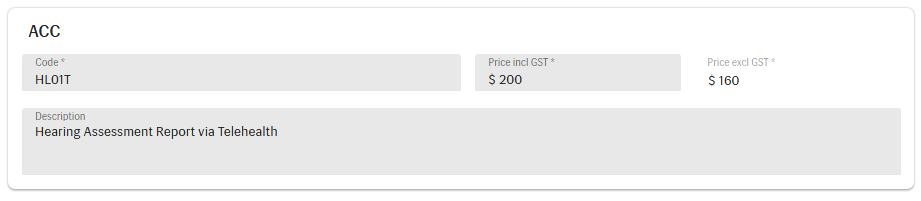
- Code: Enter the official ACC service code.
- Price (incl. GST): Enter the ACC-defined price.
- Description.
This information is used for invoices and printouts when selling ACC-covered products/services. It ensures correct coverage amounts and descriptions are available for documentation.
- Save the product.
Service Sale
When you add a configured ACC service to a sale, the ACC price is automatically populated from the Product Catalogue.
2. ACC Product Configuration
- For non-service products (e.g. hearing aids), ACC does not define fixed prices per product.
-
In the Product catalogue:
-
Add/import the product as usual.
- In the product form, select the ACC attribute.
- The unit price remains the normal retail price (not ACC).
ACC contributions for devices are not stored at product level. They are allocated manually at the Sale stage.
Product Sale
How it works:
- Add the products(s) to the sale – the unit price comes from the Product Catalogue.
-
Click Allocation to manage funding:
-
Enter the ACC amount distribution.
- Enter the relevant ACC codes manually:

  1. **Fitting fee**
  2. **MDP device contribution**
  3. **ACC device contribution**
- Save the allocation.
- The invoice/printout will show the correct distribution of payments.
3. ACC Product Import/Export
ACC products follow the same import/export process as all other products:
- In the file, use the ACC column (true/false) to mark which items are ACC-enabled.
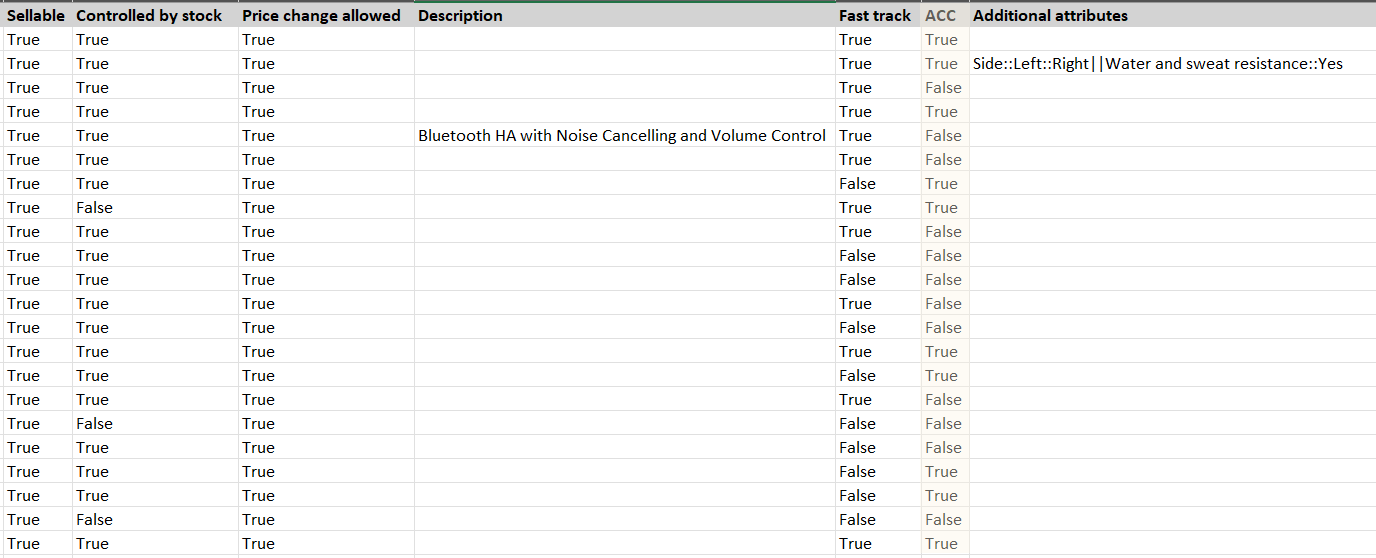
- Import back into Manage via API or manual import.