

About this release
November 9, 2026 – Manage 11.19.0
Version 1.0.0
Manage 11.19.0 improves access to key patient information, introduces additional controls for payments, invoicing, and HSP maintenance claims, and extends AI transcription to workflows. Further improvements simplify address entry and the download of large reports, and enable Event Hub connections on shared Manage setups.
NEW FUNCTIONALITY:
- [ALL, AU] Key Dates On Patient Summary
View the last fitting date for each ear, and in Australia, the last HSP replacement and client review dates, directly on the Patient Summary. - [AU] 12-Month Eligibility Check For HSP Maintenance Claims
Identify HSP maintenance claims that are not yet eligible at the time of invoicing, with the 12-month period restarting after a refitting. - [US, SG, HK, JP] Location-Based Invoicing Restriction
Limit manual creation of sales documents to a user's assigned location and their locations network. - [ALL] Payment Methods Restriction By Payer And User Role
Make payment and refund methods available only to the applicable payers and user roles. - [ALL] Start And Stop AI Transcribing From Workflows
Start and stop AI transcription as steps of a workflow.
- [AU, NZ] Address Lookup For Patients And Leads
Find and fill in accurate addresses faster when registering patients and leads. - [ALL] Silence Detection During Active AI Transcription Sessions
Pause transcription automatically after a minute of silence and choose whether to continue or stop. - [ALL] Reports: Direct Export (Download) And Preview Limits
Download large reports directly without generating a preview first. - [ALL] Event Hub Connection For Shared Manage Setups
Connect an Event Hub on shared Manage setups to use Event Catalogue integrations, such as real-time connections to a CRM, without a dedicated setup.
1. WHAT'S NEW
[ALL, AU] Key Dates On Patient Summary
Environment settings > HSP configuration > HSP contracts
Patients > [Selected patient] > Summary
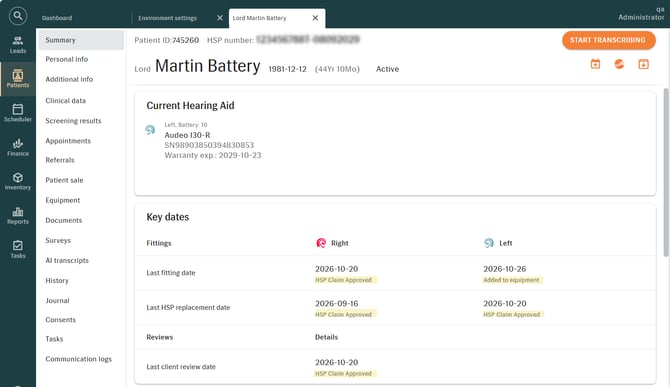
The KEY DATES section has been added to the PATIENT SUMMARY, below the CURRENT HEARING AID section. It shows the most recent fitting date for the left and right ear.
In Australia, it also shows the last HSP replacement date and the last client review date. The dates are calculated from activity in the system, so audiologists can see them at a glance without checking previous sales, equipment records, claims, or reports. In Australia, the services that count as a client review are chosen with a Client Review rule in the HSP contract.
REQUIRED PERMISSIONS
ViewPatientHOW IT WORKS
To view the key dates for a patient:
- Go to the PATIENTS module, select the patient, and open the patient's SUMMARY.
- Find the KEY DATES section below CURRENT HEARING AID.
- Check the dates for each ear. The source is shown below each date: “Added to equipment”, “Invoiced, delivered”, or “HSP Claim Approved”.
HOW DATES ARE DETERMINED
- LAST FITTING DATE (ALL COUNTRIES)
The most recent of these dates for each ear:- The delivery date of a hearing aid added to the patient’s equipment;
- The delivery note date of a hearing aid delivered through an invoiced sale, other than an HSP sale;
- The date of a hearing aid provided through an HSP sale whose claim has been approved, and that contains a service configured as a fitting service. This fitting service will not be assigned to the HSP contract rule “To be categorized as 'Replacement fitting items' on claim.”
- LAST HSP REPLACEMENT DATE (AU)
The most recent date on which an HSP hearing aid was provided through an HSP sale with an approved claim, where the sale contains a service assigned to the HSP contract rule “To be categorized as 'Replacement fitting items' on claim.” - LAST CLIENT REVIEW DATE (AU)
The most recent date of an approved HSP claim containing a service assigned to the Client Review rule.
NOTE:
-
Key Dates are read-only and cannot be entered, edited, or removed manually.
-
A “-” is shown when no qualifying event has taken place. If an event has taken place for only one ear, the other ear shows “-”.
-
If a hearing aid or service is credited, replaced, or a delivery date is changed or removed, the date is recalculated using the next most recent valid date.
-
For HSP claims, the date selected for the hearing aid or service in the sale is used once the claim is approved.
CONFIGURING THE CLIENT REVIEW RULE (AU)
The Client Review rule does not add any additional behavior except updating the "Last client review date". If a service is assigned to both an invoice creation rule and the Client Review rule, the invoice creation rule is taken into account, and the Client Review rule is used to validate the Last Client Review Date.
-
Go to ENVIRONMENT SETTINGS > HSP CONFIGURATION > HSP CONTRACTS and open an HSP contract.
-
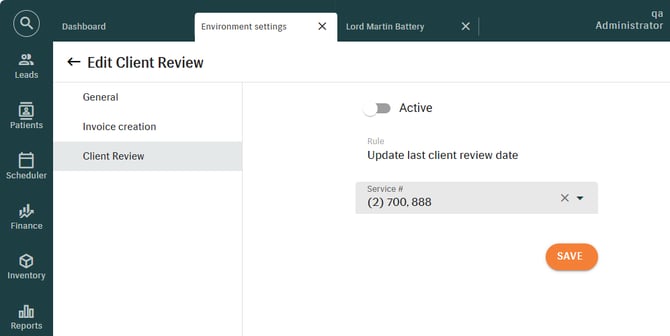
Under RULES, select CLIENT REVIEW. The rule is named “Update last client review date”.
-
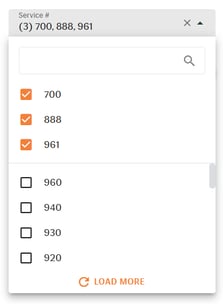
In the SERVICE NUMBER drop-down, select one or more services.
-
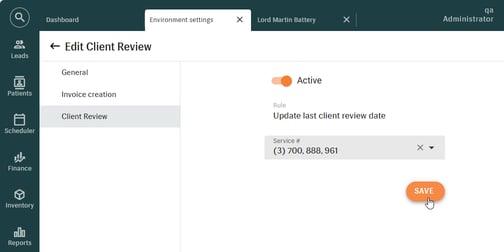
Turn on the ACTIVE toggle. The rule is inactive by default, and the assigned services are used only while it is active.
- Click SAVE.
NOTE:
-
Making the rule inactive stops it from being applied from that point forward. Dates already populated are not changed.
-
Assigning a service to the rule does not change any Invoice Creation Rules or other validations configured for that service.
[AU] 12-Month Eligibility Check For HSP Maintenance Claims
Environment settings > HSP configuration > HSP contracts
HSP maintenance claims are now checked against the 12-month eligibility period following a fitting or refitting, helping users identify ineligible claims at the time of invoicing instead of receiving a rejection later.
A new HSP contract invoice creation rule, “Refitting payment can be claimed within 12 months of maintenance”, has been added. The new rule works together with the existing “Maintenance payment cannot be claimed within 12 months” rule. Only services assigned to the new rule restart the 12-month period defined by the existing rule. Other rules and services do not affect this period. Services assigned to the new rule can be invoiced without limit, with each invoice restarting the 12-month period from the refitting date.
As a result, maintenance services assigned to the “Maintenance payment cannot be claimed within 12 months” rule can be invoiced again only once 12 months have passed since the most recent refitting. If a maintenance service is invoiced earlier, Manage blocks it and displays a message informing the rule is applied and the maintenance payment cannot be claimed.
REQUIRED PERMISSIONS
ViewHSPConfiguration and EditHSPConfiguration
HOW IT WORKS
To configure the rule:
- Go to ENVIRONMENT SETTINGS > HSP CONFIGURATION > HSP CONTRACTS and open an HSP contract.
- Under RULES, select INVOICE CREATION RULES and open “Refitting payment can be claimed within 12 months of maintenance”.
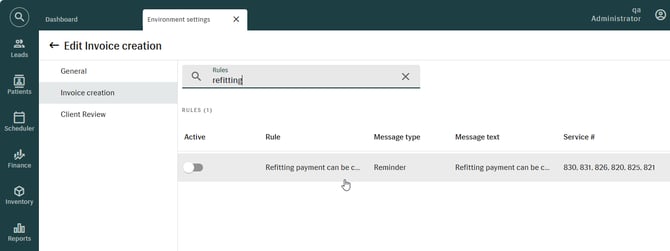
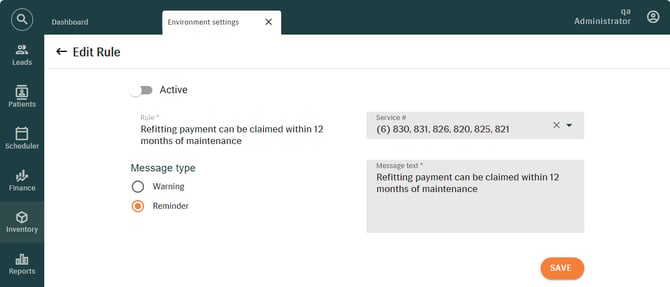
- In the SERVICE # drop-down, select or clear the services that count as refitting services. Services 820, 821, 825, 826, 830, and 831 are assigned by default.
- Turn on the ACTIVE toggle and click SAVE.
NOTE:
- The rule is inactive by default. The default services are assigned at deployment and can be changed or removed.
- Each refitting service restarts the 12 months from the date of the most recent refitting.
- For a patient transferred from another clinic with no initial fitting recorded, a refitting service can be invoiced as the first HSP service, and the 12-month period starts from the refitting date.
- The 12-month period of the rule “Maintenance payment cannot be claimed within 12 months” is restarted only by the services assigned to the rule “Refitting payment can be claimed within 12 months of maintenance”. Other invoice creation rules and services that are not assigned to this rule do not restart the period.
[US, SG, HK, JP] Location-Based Invoicing Restriction
Environment settings > Finance settings > Sale related > Invoicing restriction
Patients > [Selected patient] > Patient sale
The location-based restriction on sales document creation is now available in the US, Singapore, Hong Kong, and Japan.
When the setting "Restrict invoicing outside the locations network" is enabled, users can create and change sales only for their assigned location and the other locations in their locations network, and actions that are not permitted are not shown to users without access. The setting is turned off by default and applies across your entire Manage setup.
For details, see the Manage 11.18.0 release notes.
[ALL] Payment Methods Restriction By Payer And User Role
Environment settings > Finance settings > Sale related > Payment/Refund methods
Patients > [Selected patient] > Patient sale
Payment and refund methods can now be restricted by payer and user role. This allows specific methods, such as Write Off and Manual Adjustment, to be made available only to the applicable payers and user roles. When a payer is selected, only the methods intended for both that payer and the current user role are displayed, helping ensure that the appropriate method is used.
REQUIRED PERMISSIONS
Users must have the AllowChangeUserRoleForPaymentMethod permission to view and edit the ROLES tab, which is available when editing a payment or refund method. Users without this permission do not see the ROLES tab.
HOW IT WORKS
- Go to ENVIRONMENT SETTINGS > FINANCE SETTINGS > SALE RELATED > PAYMENT/REFUND METHODS and open the method you want to restrict.
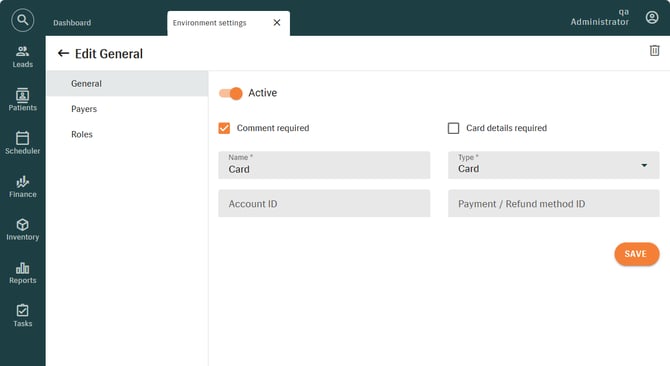
- On the PAYERS tab, choose whether the method is available for the patient payer and for which 3rd party payers.
Use the search box to find a payer or select all 3rd party payers at once with the respective control.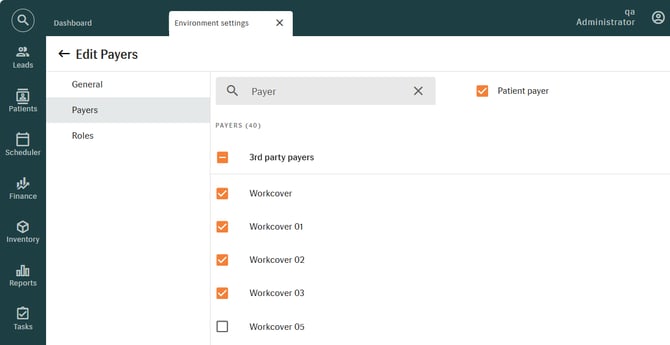
- On the ROLES tab, choose which user roles can use the method. Use the search box to find a role, or select all roles at once.
The Administrator default role is always selected and cannot be unchecked.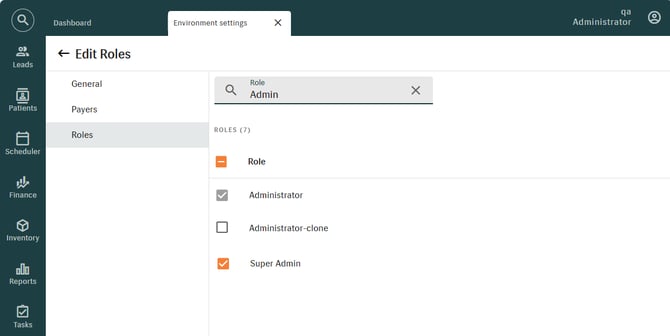
- When you register a payment, refund, or deposit, select the payer. Only the methods allowed for that payer and for your role are offered.
EXAMPLE: Since Workcover is selected on the PAYERS tab of the Card payment method, the Card is available when you add a payment for an invoice where Workcover is the payer.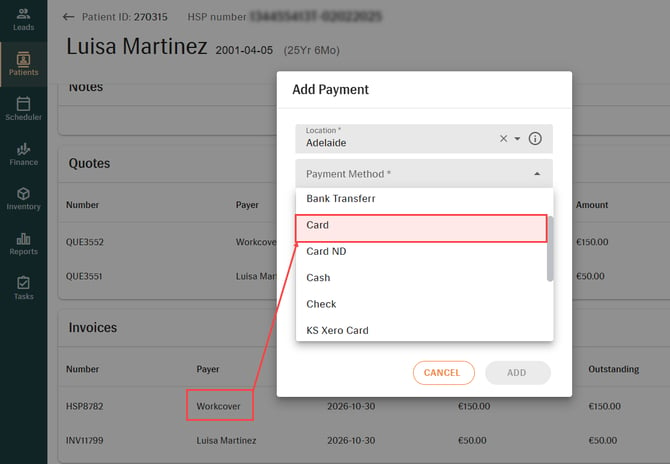
If none are available, the respective message indicates that no options are available.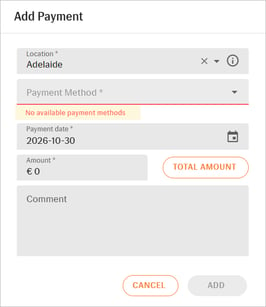
NOTE:
-
All payers and all roles are enabled by default, so current workflows are not affected until a method is restricted.
-
The payer restriction also applies to payments, deposits, and refunds created through the public API.
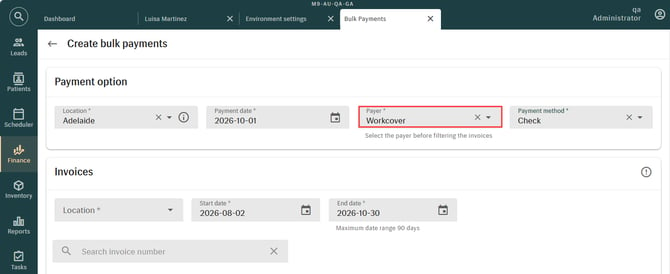
- For bulk payments in Australia, the payer is now selected before the invoices are filtered, so please select the payer first.
- In the UK, the existing availability of payment methods by sale type continues to apply together with these restrictions. For example, to make a payment method available or restricted for NHS, configure it both for NHS sale type and NHS payer.
[ALL] Start And Stop AI Transcribing From Workflows
Environment settings > Workflows > Activities
Patients > [Selected patient] > Workflows
Workflows can now include START TRANSCRIBING and STOP TRANSCRIBING steps, so the AI transcription of the conversation between the specialist and the patient can be started and stopped as part of the workflow. This reduces manual steps for audiologists and supports consistent use of AI Notes across configured clinical processes.
NOTE: This feature requires Manage AI to be enabled for your company. To have it enabled, please contact Auditdata Support.
REQUIRED PERMISSIONS
Users must have the ManageAIStartTranscribing permission to start transcribing. Users without it see the START TRANSCRIBING step greyed out, with a tooltip explaining that the action is not available because of missing permissions.
HOW IT WORKS
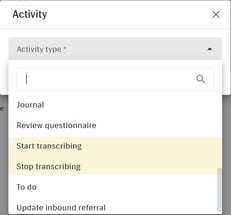
- Go to ENVIRONMENT SETTINGS > WORKFLOWS > ACTIVITIES tab. Add the START TRANSCRIBING and STOP TRANSCRIBING activities to the activities list.
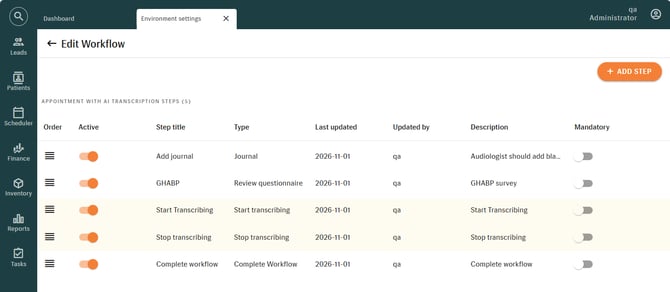
- Go to ENVIRONMENT SETTINGS > WORKFLOWS > WORKFLOWS, open or create a workflow template, and click + ADD STEP to add the activities. The number and order of these steps are not restricted.
- In a patient's workflow, start the START TRANSCRIBING step. After the usual consent and microphone selection, transcription begins, and the step is marked as completed.
NOTE: Only one transcription can run at a time, including for another patient.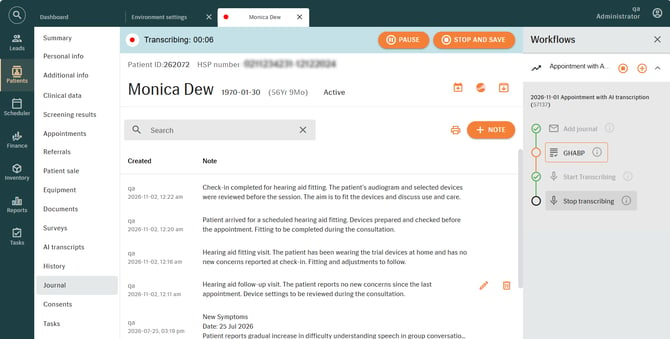
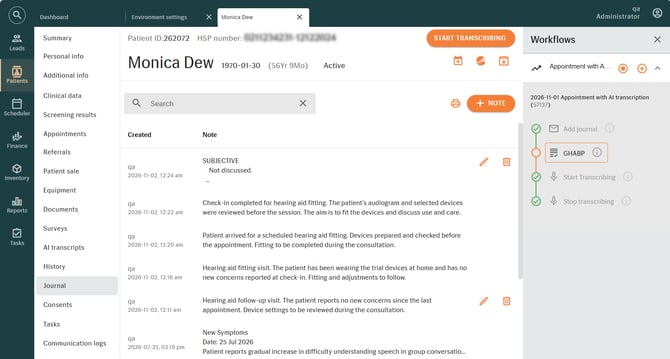
- To stop, click the STOP TRANSCRIBING step. The same pop-up as on the patient page lets the user continue transcribing, cancel without saving, or stop and save. After saving, the document is prepared, and the step is marked as completed.
NOTE:
-
A STOP TRANSCRIBING step can only stop a transcription that was started from the same workflow. If it was started from the patient page or from a different workflow, a message asks the user to stop it from there, and the step remains active.
-
If the transcription was started from the workflow, the STOP TRANSCRIBING step is also marked as completed when the transcription is stopped from the patient header or reaches the maximum of 120 minutes. If a user completes the workflow while it is still running, a message asks whether to stop it. If the user declines, the transcription continues, and the workflow is completed.
WORKFLOW TRANSCRIPTION LOGGING
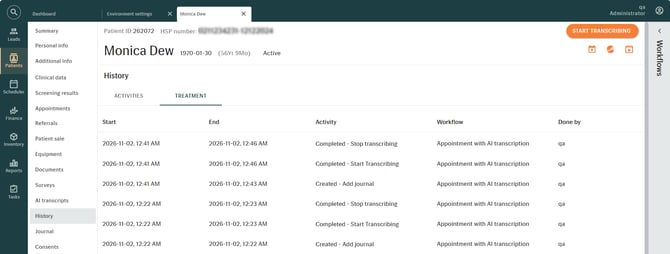
START TRANSCRIBING and STOP TRANSCRIBING steps are shown in the patient's HISTORY, under ACTIVITIES and TREATMENT.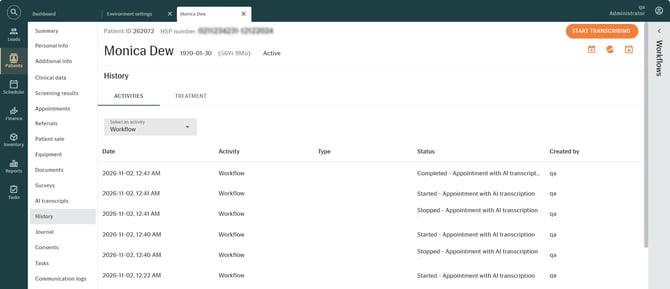
All transcribing actions are also recorded in the audit logs. To view them, go to AUDIT TRAILS > SETTINGS.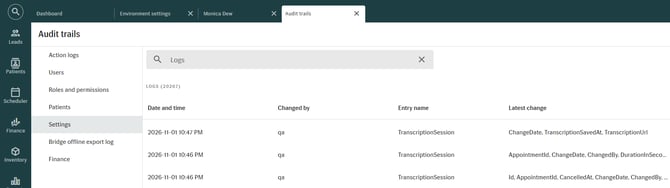
2. IMPROVEMENTS
[AU, NZ] Address Lookup For Patients And Leads
Patients > [Selected patient] > Personal info
Leads > [Selected lead] > Personal info
Address lookup is now available in Australia and New Zealand, helping users find and enter accurate addresses faster and with fewer errors when registering patients and leads. A search returns matching addresses, and selecting one fills in the address fields automatically. It works in the same way as the address lookup introduced for the UK.
NOTE: Address lookup is not enabled by default. The address search fields become available only after this functionality has been activated for your Manage setup. To request activation, contact Auditdata Support. Before doing so, ensure that you have an active Precisely Trillium account, as it is required to use address lookup.
HOW IT WORKS
- Open a patient or lead record and go to the address section.
- In the ADDRESS field, enter part of the address, such as a postcode, or a street and suburb, and click SEARCH.
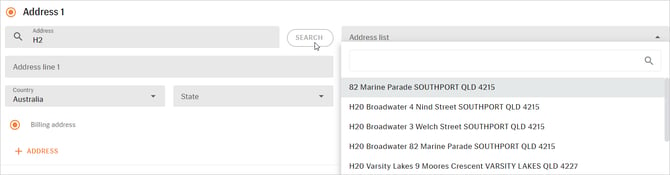
- Select the matching address from the ADDRESS LIST. The address lines, state, city, and postcode are filled in automatically.
NOTE: A postcode alone can return many results in busy areas. For best results, enter a postcode together with a street.
- If no address is found, a message asks you to try another postcode or different values, and you can enter the address manually.

[ALL] Silence Detection During Active AI Transcription Sessions
Patients > [Selected patient]
AI transcription now detects silence in the middle of a session. After one minute of continuous silence following detected speech, transcription is paused automatically, and the user is asked whether to continue or stop. This helps avoid long, empty recordings and makes it clear whether transcription is still running.
NOTE: This feature requires Manage AI to be enabled for your company. If it is not available, contact Auditdata Support for assistance.
HOW IT WORKS
-
Go to PATIENTS > [SELECTED PATIENT] and start a session from any tab with START TRANSCRIBING.
-
When speech has been detected and is followed by one minute of continuous silence, transcription pauses, and a pop-up notification is displayed.

-
Select CONTINUE to resume audio capture and transcription in the same session, or select STOP to end the session. STOP shows the standard end-of-recording pop-up, and the process then continues as it does after a manual stop.
[ALL] Reports: Direct Export (Download) And Preview Limits
Reports > [Selected report]
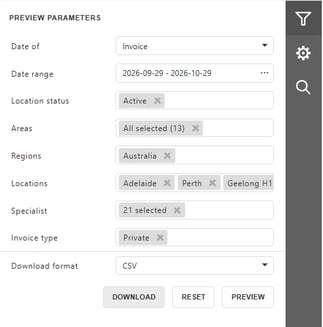
Large reports can now be downloaded without first generating a preview. The new DOWNLOAD button in the report parameters panel exports the report using the selected parameter values, and the file is downloaded automatically when it is ready. The direct download option is available for reports of any size, but is particularly useful for reports containing large amounts of data. The previous SUBMIT button has been renamed PREVIEW.
To maintain responsiveness when working with large reports, report previews are now subject to a configurable record limit of 2,000 records by default. If a report exceeds the configured limit, a message indicates that the report filters should be refined or DOWNLOAD should be used instead. The limit applies only to previews and does not restrict report exports.
HOW IT WORKS
-
Go to REPORTS, select a report, and set the report parameters in the PREVIEW PARAMETERS panel, for example, the date range, locations, and specialists.
-
In the DOWNLOAD FORMAT field, select the export format (CSV or Excel).
-
Click DOWNLOAD. The export starts with the selected parameter values, and the file downloads when the export is complete.
NOTE: While the file is being generated, the PREVIEW PARAMETERS panel is disabled in the tab where the export was started to prevent another action from running at the same time. Other Manage tabs, including patient records and other reports, remain available during this process.
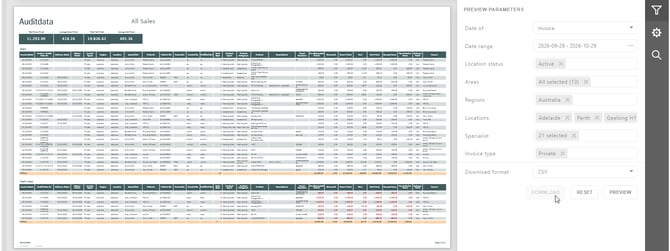
IF A REPORT IS TOO LARGE TO PREVIEW
When you click PREVIEW and the report exceeds the preview limit, an error message is displayed instead of the preview.
[ALL] Event Hub Connection For Shared Manage Setups
Customers on shared Manage setups can now connect their own Event Hub, so they can use Event Catalogue integrations without needing a dedicated setup. Each customer can now have a separate Event Hub, which allows real-time connections to other systems, such as a CRM or marketing system.
If an Event Hub is already in use by another customer, a warning is displayed, and confirmation is required before saving. This helps prevent one customer’s data from being sent to another customer’s Event Hub.
3. TECHNICAL REQUIREMENTS UPDATE
3.1 Current System Requirements
| Operating systems | Windows 10, Windows 11 |
| Supported browsers | Chrome (latest version), Edge (latest version) |
| Language preferences | English |
| Country layers | UK, AU, US, NZ, SG, HK, JP |
| Bridge version | Bridge BE 2.6.0 + Client 2.6.1 |
| Engage version |
1.3.3, 2.0.0 |
| Zapier version | AuditData (4.3.1) |
| Screen resolution | 1920x1200 |
| Internet connection speed | 10Mb/s |
| COUNTRY | TABLE | COLUMN NAME |
|---|---|---|
| US | Dim_AppointmentICD10CodeLink | EnvironmentID (key), AppointmentId (key), ICD10CodeId (key), Info, LoadTime, DataLoadTimestamp |
| US | Dim_AppointmentReasonICD10CodeLink | EnvironmentID (key), AppointmentReasonId (key), ICD10CodeId (key), Info, LoadTime, DataLoadTimestamp |
| ALL | Dim_AudiogramAverageHearingThreshold | EnvironmentID, AudiogramAverageHearingThresholdId (key), AudiogramId, LeftEar3FAHL, RightEar3FAHL, IsDeleted, Info, LoadTime, DataLoadTimestamp |
| ALL | Dim_Bundle | EnvironmentID, BundleId (key), CreationDate, ChangeDate, CreatedBy, ChangedBy, Name, Description, TotalCost, IsActive, IsAutomaticDelivery, IsSellable, IsPriceChangeAllowed, IsDeleted, Info, LoadTime, DataLoadTimestamp |
| ALL | Dim_ImpedanceAdmittanceCurvePoint | EnvironmentID, ImpedanceAdmittanceCurvePointId (key), ImpedanceTympanogramTestId, Pressure, G, B, Y, Info, LoadTime, DataLoadTimestamp |
| ALL | Dim_ImpedanceAudiogram | EnvironmentID, ImpedanceAudiogramId (key), AudiogramId, EarSide, NoahSessionId, ActionGroup, ActionGroupGuid, Info, LoadTime, DataLoadTimestamp |
| ALL | Dim_ImpedanceReflexTest | EnvironmentID, ImpedanceReflexTestId (key), ImpedanceAudiogramId, TestType, Frequency, SignalLevelDb, SignalLevelNotDb, SignalType, Decay, ReflexDetected, Info, LoadTime, DataLoadTimestamp |
| ALL | Dim_ImpedanceTympanogramTest | EnvironmentID, ImpedanceTympanogramTestId (key), ImpedanceAudiogramId, AdmittanceCurveType, AdmittanceCurveGUnit, AdmittanceCurveBUnit, AdmittanceCurveYUnit, ProbeToneFrequency, RecordingMode, TympanogramType, PeakPressure, EarCanalVolumeAdmittanceType, EarCanalVolumeYValue, EarCanalVolumeGValue, EarCanalVolumeBValue, EarCanalVolumeYUnit, EarCanalVolumeGUnit, EarCanalVolumeBUnit, StaticAdmittanceType, StaticAdmittanceYValue, StaticAdmittanceGValue, StaticAdmittanceBValue, StaticAdmittanceYUnit, StaticAdmittanceGUnit, StaticAdmittanceBUnit, PeakHeightAdmittanceType, PeakHeightYValue, PeakHeightGValue, PeakHeightBValue, PeakHeightYUnit, PeakHeightGUnit, PeakHeightBUnit, TympanogramWidthAdmittanceType, TympanogramWidthYValue, TympanogramWidthGValue, TympanogramWidthBValue, TympanogramWidthYUnit, TympanogramWidthGUnit, TympanogramWidthBUnit, Info, LoadTime, DataLoadTimestamp |
| ALL | Dim_LocationPriceBook | EnvironmentID, LocationPriceBookId (key), LocationId, PriceBookId, IsDeleted, Info, LoadTime, DataLoadTimestamp |
| ALL | Dim_ProductCategoryTax | EnvironmentID, ProductCategoryTaxId (key), ProductCategoryId, TaxId, Percentage, Info, LoadTime, DataLoadTimestamp |
| ALL | Dim_ProductTax | EnvironmentID, ProductTaxId (key), TaxId, ProductId, Percentage, Info, LoadTime, DataLoadTimestamp |
| ALL | Dim_TaskCategory | EnvironmentID, TaskCategoryId (key), Name, IsDeleted, CreationDate, CreatedBy, ChangeDate, ChangedBy, IsActive, Color, IsPatientRequired, Info, LoadTime, DataLoadTimestamp |
| ALL | Dim_TaskStatus | EnvironmentID, TaskStatusId (key), Name, IsDeleted, CreationDate, CreatedBy, ChangeDate, ChangedBy, IsActive, IsCompleted, Info, LoadTime, DataLoadTimestamp |
| ALL | Fact_BundleProducts | EnvironmentID, BundleProductId (key), CreationDate, ChangeDate, CreatedBy, ChangedBy, BundleId, ProductId, Quantity, Price, IsDeleted, Info, LoadTime, DataLoadTimestamp |
| ALL | Fact_OrderSubmissionLogs | EnvironmentID, OrderSubmissionLogId (key), OrderId, Content, CreationDate, ChangeDate, CreatedBy, ChangedBy, Info, LoadTime, DataLoadTimestamp |
| ALL | Fact_ReplacementsGlobal | EnvironmentID, ReplacementGlobalId (key), CreationDate, ChangeDate, CreatedBy, ChangedBy, ReplacementForId, ReplacedById, IsDeleted, Type, Info, LoadTime, DataLoadTimestamp |
| ALL | Fact_TaskNotes | EnvironmentID, TaskNoteId (key), TaskId, Content, UserId, CreationDate, CreatedBy, ChangedBy, ChangeDate, IsDeleted, Info, LoadTime, DataLoadTimestamp |
| ALL | Fact_Tasks | EnvironmentID, TaskId (key), DateDue, UserId, PatientId, Priority, IsDeleted, CreationDate, ChangeDate, CreatedBy, ChangedBy, LocationId, CategoryId, StatusId, Name, CorrelationId, Info, LoadTime, DataLoadTimestamp |
| AU | Dim_HspCategory | EnvironmentID, HspCategoryId (key), Code, Description, Amount, GST, Total, ContractId, IsDeleted, CreatedBy, CreationDate, ChangedBy, ChangeDate, CustomPriceAllowed, Info, LoadTime, DataLoadTimestamp |
| AU | Dim_HspService | EnvironmentID, HspServiceId (key), ServiceNumber, HeadsetType, ExGST, GSTLiable, GST, Total, ContractId, IsDeleted, CreatedBy, CreationDate, ChangedBy, ChangeDate, CustomPriceAllowed, Info, LoadTime, DataLoadTimestamp |
| AU | Fact_Commissions | EnvironmentID, CommissionId (key), IsDeleted, SaleId, SpecialistId, Allocation, CreatedOn, ModifiedOn, CreatedBy, ModifiedBy, Info, LoadTime, DataLoadTimestamp |
| AU | Fact_MedicareReferrals | EnvironmentID, MedicareReferralId (key), PatientId, WrittenDate, StartDate, EndDate, SpecialistId, ReferringPhysician, ReferringPhysicianMedicareNumber, RequestingPhysician, RequestingPhysicianMedicareNumber, EmployersName, CaseNumber, DateOfInjury, CreationDate, CreatedBy, ChangeDate, ChangedBy, ReferringPhysicianId, ReferringPhysicianPracticeId, ReferringPhysicianPracticeName, RequestingPhysicianId, RequestingPhysicianPracticeId, RequestingPhysicianPracticeName, Info, LoadTime, DataLoadTimestamp |
| AU | Fact_PayerSaleTaxes | EnvironmentID, PayerSaleTaxId (key), TaxId, TaxCode, Amount, PayerSaleId, IsDeleted, Info, LoadTime, DataLoadTimestamp |
| AU | Fact_ProductSaleTaxes | EnvironmentID, ProductSaleTaxId (key), TaxId, TaxCode, Amount, TaxableGoodsAmount, ExemptServicesAmount, ProductSaleId, IsDeleted, Info, LoadTime, DataLoadTimestamp |
| AU | Fact_SaleTaxes | EnvironmentID, SaleTaxId (key), TaxId, TaxCode, Amount, ExemptServicesGrossAmount, ExemptServicesTaxAmount, ExemptServicesNetAmount, TaxableGoodsGrossAmount, TaxableGoodsTaxAmount, TaxableGoodsNetAmount, SaleId, IsDeleted, Info, LoadTime, DataLoadTimestamp |
| COUNTRY | TABLE | CHANGE | COLUMN NAME |
|---|---|---|---|
| ALL | Dim_BatteryType | Added | IsActive (bit) |
| ALL | Dim_PaymentMethod | Added | IsBankNameRequired (bit) |
| ALL | Dim_Supplier | Added | StateId (uniqueidentifier) |
| ALL | Dim_Title | Added | IsActive (bit) |
| ALL | Dim_UserDefinedFieldsValue | Added | UserDefinedFieldsMetadataVersion (int) |
| ALL | Fact_RepairOrders | Added | ProductAttributes (nvarchar), ProductSupplierName (nvarchar), ProductManufacturerName (nvarchar) |
| ALL | Fact_ScreeningResults | Added | LocationId (uniqueidentifier) |
| ALL | Dim_PrefixSetting | Modified | IsDeleted, IsApplied (columns are now obsolete and will no longer contain data) |
| ALL | Dim_DocumentNumberIncrement | Modified | IsDeleted (column is now obsolete and will no longer contain data) |
| ALL | Fact_PurchaseOrders | Modified | SupplierId (column is now obsolete and will no longer contain data) |
| AU | Dim_HSP | Added | AudiogramId (uniqueidentifier) |
| AU | Dim_HspMaintenance | Added | ChangeDate (datetimeoffset) |
| AU | Fact_ProductSales | Added | FunderCode (nvarchar(96)), Attributes (nvarchar) |