

Note: in this article Trx means 'Transaction'. OMS means Office Management System. Generally speaking, small businesses do not use the purchase order module in Manage unless they have a full accounts payable department in their business. Serial numbers can still be recorded.
Key PointsData is sent directly to Xero from MG via a batching process called the Daily Close (DC).
All transactions in Xero display the MG DC batch #. Many reports in Manage also display the DC2, 3 and 4 batch numbers, particularly the Payments and Deposits report when expert to Xero.
Daily Reconciliations and Transaction Handling- Invoice payment and Quote deposit information
- Sales data including COGS and Inventory adjustments (if costs are recorded against product information)
- Stock count value adjustments – optional
The daily close journals generated by Manage are exported to Xero automatically when the DC processes are run, as follows:
- Payment & deposit data will be sent over in DC2.
- Manage splits the payments and invoice transactions because staff in locations have to balance the payments, so after DC2 is accepted a temporary ‘holding’ accrual journal for the bank transactions (trx) is created. The batch transaction total will accrue to Accounts Receivable control account and reverse in DC3.
- Income/COGS/Inventory data is sent in DC3.
- Once run the DCs lock documents to prevent future editing. Only returns are then allowed.
- When the “DC4” Export Purchase Transactions is run, it will send journals to Xero, These will display as Supplier Invoices.
- The vendor must exist in Xero and Manage and must be spelt exactly the same.
- When submitting bills to Xero the supplier bill number is used as the Xero bill number. There is nothing stopping 2 vendors from having the same supplier bill number. Therefore, whenever a bill is submitted to Xero and the response comes back, Manage ensures that the proper bill is marked as "Successful".
- Location information can be sent to Xero if Xero is configured with Location codes matching those in Manage.
Are you downloading bank feeds in Xero? If so add a 'Cash Clearing' bank account in Xero. It will have to be a bank account type.
Xero requires bank account numbers so fake them.
· These are the accounts required for the integration:
|
Manage Name |
Xero Account Type |
Account Tax Status |
|
|
|
|
|
Bank Account |
Bank |
BAS Excluded |
|
Inventory account |
Current Asset |
BAS Excluded |
|
Accounts Receivable |
Current Asset |
BAS Excluded |
|
Deposits Held (on HA) |
Current Liability |
BAS Excluded |
|
Tax Collected (GST) use the default code in Xero |
Current Liability |
BAS Excluded |
|
Accounts Payable (A/P) use the default code in Xero |
Current Liability |
BAS Excluded |
|
Cost of Goods Sold |
Direct Cost |
GST on Expenses |
|
Repair COGS |
Direct Cost |
GST on Expenses |
|
Stock Take Adjustment |
Direct Cost |
GST On Expenses |
|
Rounding account |
Expense |
BAS Excluded |
|
Income (Incl. Top Up - Australia) |
Income |
GST on Income |
|
HSP Revenue (Australia only) |
Income |
GST on Income |
|
Repair Revenue |
Income |
GST on Income |
|
HSP B&M (Australia only) |
Income |
GST on Income |
Notes to the table above:
- Assets & Liability accounts – must be “Current”.
- Deposits Held – upfront deposits on Quotes (Sales Orders). This must be a current liability
- Tax Collected – That is your GST account
- Inventory Adjustments – Direct cost of stock count adjustments
- Rounding – rounding on Invoices (rounding must be active in Manage for the integration to work
- HSP Revenue/Income – Australia only
- HSP B&M – Maintenance fees – Australia Only
- Top Up Revenue/Income – Australia only
Not all businesses will use Manage for Stock Control (Orders/Receiving/Supplier Bills) but if they do, when the “DC4” Export Purchase Transactions is run, it will send the bill details to Xero and will display as Supplier Invoices.
- When submitting bills to Xero the reference number is used as the bill number. There is nothing stopping 2 vendors from having the same reference number.
- Therefore, whenever a bill is submitted to Xero and the response comes back, Manage has to ensure that the proper bill is marked as "Successful".
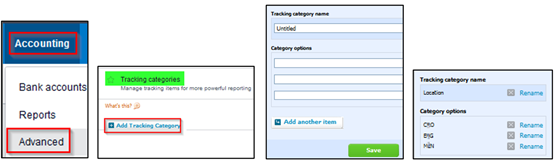
Admin staff will set up Location codes in Xero to match what the code is in Manage. Once this is done the Location code will be sent to Xero from MG during the data transfer.
Here is the overview on how it is configured:
- In Xero go to: Accounting>Advanced>Tracking Category, then click Add.
- Call it “Location”, then add the Location Codes exactly as it is in Manage>Config>System>Locations.
 Cash Clearing a/c Reconciliation in Xero - Transfer
To reconcile the Cash Clearing account against the bank account, here is an example kindly provided by a client. [We are not the Xero experts.]
This is the bank account: [In the figure below none of the amounts match. Note: the bank may need to be reconciled against multiple entries in payment clearing]
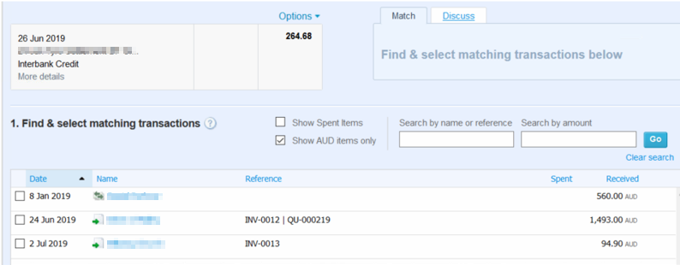
Generally you would match against an invoice but cannot so click “Transfer” and select Cash Clearing (or whatever you have called the a/c):

Click OK.
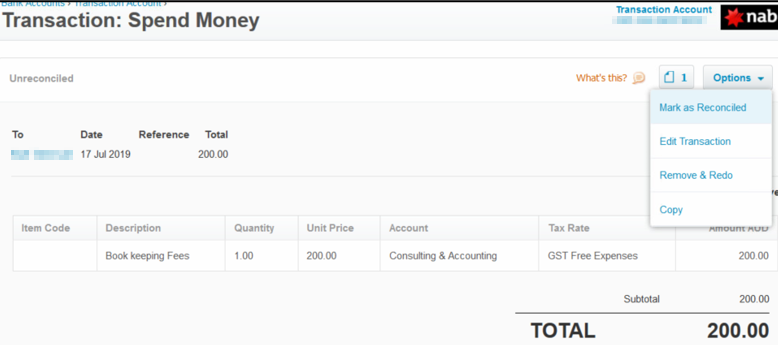
Then go to payment clearing. You could 'mark as reconciled' but it is not necessary – ie optional.
The next section is on configuration in Manage.
These areas need to be configured in MG and will be done by Auditdata staff if we are supplied the account numbers:
- Turn on Rounding to the nearest 5c in CONFIGURE SYSTEM SETTINGS>SYSTEM>DOCUMENT PARAMETERS
- CONFIG>ACCOUNTING AR/AP > NAVISION OR XERO EXPORT SETUP.
Note to the table above:
- Bank Account: The window at the end of the Payment Debit Account fields allows the user to configure different GL codes if the business has separate bank accounts for each clinic or group of clinics.
- Payment Credit Account: must be the Accounts Receivable account.
- OHS A/R Holding account: Must be the Accounts Receivable account.
- Find the Xero directory in Export Directories and add for each available transaction type.
Add the Payment Methods in CONFIG>ACCOUNTING>PAYMENT METHOD:
- The TRX TYPE must be English characters. Payments can be reported on by Trx Type.
- If the EXPORT DETAIL column is ticked it means “export each payment individually, not as a batch Total’. Most users have these checked for individual payments and unchecked for a batch-type lump sum payment eg government payment which includes multiple invoices.
o For example, for Summary, two payments made today via cash, one for 10.00 and one for 2.00, would import into XERO as one line item for the total of 12.00 with today’s date. Invoice numbers cannot be seen in Xero for this type of setting so the payment deposit report and the Daily Close one report become very important.
o Check the EXPORT DETAIL box to list these transactions separately. Within XERO, you would see one CASH transaction for 10.00 and one CASH transaction for 2.00. Invoice numbers can be seen in Xero when details are exported.
o If you have more than one bank account in Xero for different Methods of Payment, indicate those numbers in the PAYMENT DEBIT ACCOUNT field.
o If you have different Bank accounts for each Location or clinic, click the search option in the PAYMENT DEBIT ACCOUNT field. This can be done in the NAVISION/XERO ACCOUNT SETUP as well.
- In ACCOUNTS PAYABLE>VENDOR INFORMATION – set up the Xero account number for each of your VENDORS/ SUPPLIERS.
Also add the Vendors in Xero – they must be spelt exactly the same in both. Note the field for Xero account number – this must be the A/P Current Liability.
· When “DC4” Export Purchase Transactions is run it will send to Xero and will display as Supplier Invoices.
o When submitting bills to Xero the reference number is used as the bill number. There is nothing stopping 2 vendors from having the same reference number.
o Therefore, whenever a bill is submitted to Xero and the response comes back, Manage has to ensure that the proper bill is marked as "Successful".
o Manage will confirm that the vendor matches, the date matches, and that the bill total (including tax) matches.
o In some instances, Xero rounds differently to Manage which can cause a 1 cent difference. Therefore, Manage will not mark it as successful since there is a ‘totals’ mis-match (eg 4.73 vs 4.72).
o If a transaction in Xero Export Status displays as “Failed”, always check Xero before re-running the export, to confirm whether or not that bill came through. If it does appear in Xero, the failed trx (transaction) can be voided in AU.
Implementing Xero for existing Manage usersFor businesses already on Manage who have already run the daily closes, there are tasks required before Auditdata can integrate your business with Xero:
- Run Aged A/R Report and ensure that it is accurate.
- Run the PAYMENTS & DEPOSITS REPORT for Non-Exported payments for a broad date range to ensure that there are no non-exported payments Eg 01011901 to 13/12/2050. Look for both future and past dated payments not yet exported in the daily close)
- Complete the daily closes 1, 2, 3 & 4 for all locations, including Export Purchase Transactions if you are using Orders.
- In DC1, do not change the dates on the screen in any way.
- Make sure there are no AP bills on hold prior to doing so.