

Quick summary: The pause between words in a speech test is a setting in the speech test definition. You can lengthen or shorten it on the Word Scoring tab, either permanently for that test or temporarily for one session. The setting applies to speech material that has a word list scheme.
Who is this for?
Clinicians and administrators who find the gap between words too short or too long during speech audiometry, and want to change it. Common ways this gets described: speech interval, word interval, gap between words, time between words, words coming too fast.
Before you start
You'll need:
- Measure installed and running
- Speech material (a CD or a sounds folder) that has a word list scheme
To check for a word list scheme, open the speech module and look at the Media Control panel. If a scheme is loaded, you'll see word lists instead of plain tracks. If you only see tracks, the pause setting won't apply. Contact Auditdata Support in that case.
Change the pause between words
This changes the pause for every session that uses this test definition.
- In Measure, go to Tools > Test Definitions.
- Select the Speech module from the tabs on the left.
- Select the speech test definition you use with your speech material, and open it for editing.
- Open the Word Scoring tab.
- Set Pause, sec to the length you want.
- Click OK to save the test definition.
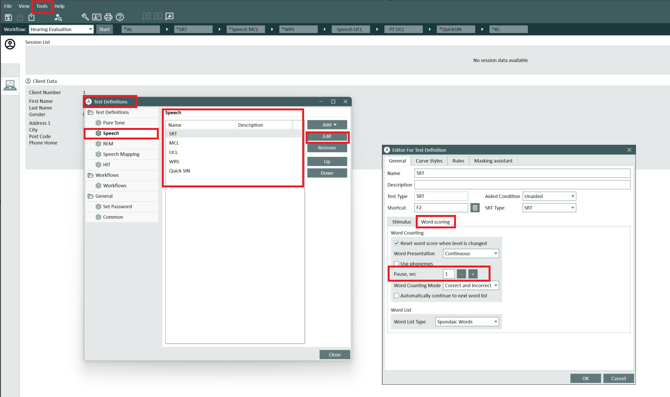
The path from Tools to the Pause, sec field, highlighted in red (SRT shown).
The Word Scoring tab also holds the word presentation mode and the word counting mode. You don't need to change these to adjust the pause.
Related articles
- Video - Creating and editing speech audiometry test definitions
- Video - Adding speech material to local Measure workstation
Need more help?
Submit a ticket to contact Auditdata Support.