

Quick summary
Measure speakers produce very soft or barely audible sound. This is typically caused by corrupted or misconfigured Windows audio drivers, or audio enhancement effects interfering with the output. Reinstalling the audio drivers and configuring Primus as the default audio device usually resolves the issue.
⚙️ Before you begin
- Make sure you have administrator access to the PC - you will need it to delete drivers and change audio settings.
- Close all open audio applications before starting.
Step 1: Check cable connections
Are all speaker and audio cables firmly connected?
- ✅ Yes → Proceed to Step 2.
- ❌ No → Take these steps:
- Reseat all audio cables at both ends.
- Try a different cable to rule out a cable fault.
→ Check if the issue is resolved. If yes - you're done ✓. If no - continue to Step 2.
Step 2: Uninstall audio devices and drivers
Have you uninstalled all audio devices and drivers via Device Manager?
- ✅ Yes → Proceed to Step 3.
- ❌ No → Take these steps:
- Open Device Manager (right-click the Start button → Device Manager).
- Expand Sound, video and game controllers.
- Right-click High Definition Audio Device → Uninstall device. When prompted, check the box to delete the driver and confirm.
- If present, also uninstall Intel Smart Sound Technology BUS the same way.
- Repeat for any other audio devices listed.
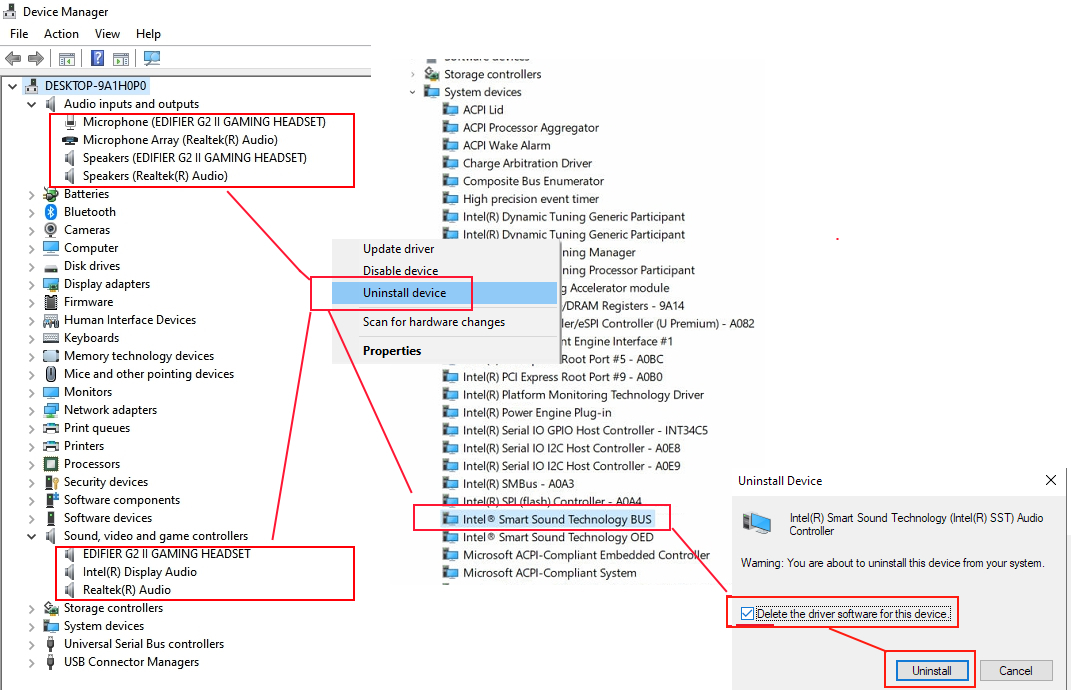
→ Proceed to Step 3 to restart and reinstall.
Step 3: Restart the PC and allow drivers to reinstall
Has the PC been restarted and audio devices reinstalled by Windows?
- ✅ Yes → Proceed to Step 4.
- ❌ No → Take these steps:
- Restart the PC.
- Wait 2–3 minutes after logging in for Windows to automatically reinstall audio drivers.
- Open Device Manager and verify that audio devices reappear under Sound, video and game controllers.
→ Proceed to Step 4.
Step 4: Configure Measure as the default audio device
Is Measure set as both the Default Device and Default Communication Device in Windows Sound settings?
- ✅ Yes → Proceed to Step 5.
- ❌ No → Take these steps:
- Open Control Panel → Sound.
- In the Playback tab, right-click Measure → Set as Default Device.
- Right-click it again → Set as Default Communication Device.
- Double-click Measure to open its properties → go to the Effects (or Enhancements) tab → select Disable all effects → click Apply.
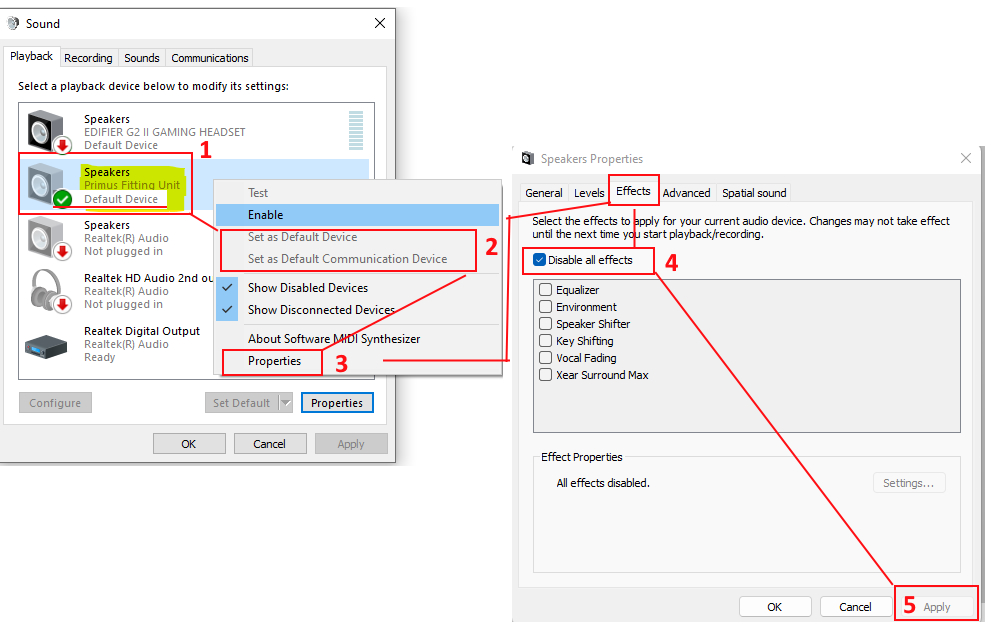
→ Check if the issue is resolved. If yes - you're done ✓. If no - continue to Step 5.
Step 5: Test speaker output
Does audio play at the correct volume in Measure ?
- ✅ Yes → Issue resolved - you're done ✓.
- ❌ No → Open Measure and run a Speech test or play a sound from the library to confirm whether the volume is now correct. If still soft, proceed to the escalation path below.
🔺 Escalation path
If none of the above steps resolved the issue, contact Auditdata Support.
Please have ready:
- List of audio devices in Device Manager before and after reinstallation
- Whether drivers were successfully deleted and reinstalled
- Screenshots of Device Manager and Sound settings
- Any error messages encountered
- Your account name and contact details
- Which steps above you already tried
✅ Expected outcome
After completing these steps, audio drivers are reinstalled and Measure speakers play sound at the correct volume during testing.
📝 Additional notes
- Audio enhancement effects (under Device Properties) can reduce output volume - always disable them for Primus and Measure devices.
- If the issue persists after driver reinstallation, check for pending Windows updates or additional audio software conflicts.
- Faulty hardware (cables, speakers, or the audio board) may require physical inspection if software steps do not resolve the issue.
- Related articles: Second channel can be heard when stimulus Speech (echo issue) · Deleting Waves Maxx Audio driver from Windows audio drivers
Need more help? Visit the Auditdata Help Centre or contact our support team.
© Auditdata - 2026