

Quick summary
GN Resound or other Noah modules fail to connect to Measure via the IMC2 protocol. This is resolved by editing a single value in the `ClientSettings.xml` Noah configuration file. This guide walks you through locating the file, making the change, and verifying the connection.
⚙️ Before you begin
- Make sure hidden files are visible in Windows Explorer (View → Show → Hidden items).
- Close Noah before editing the configuration file.
- Back up
ClientSettings.xmlbefore making any changes - copy it to your Desktop as a precaution.
Step 1: Locate the ClientSettings.xml file
Can you locate the ClientSettings.xml file in the Noah directory?
- ✅ Yes → Proceed to Step 2.
- ❌ No → Take these steps:
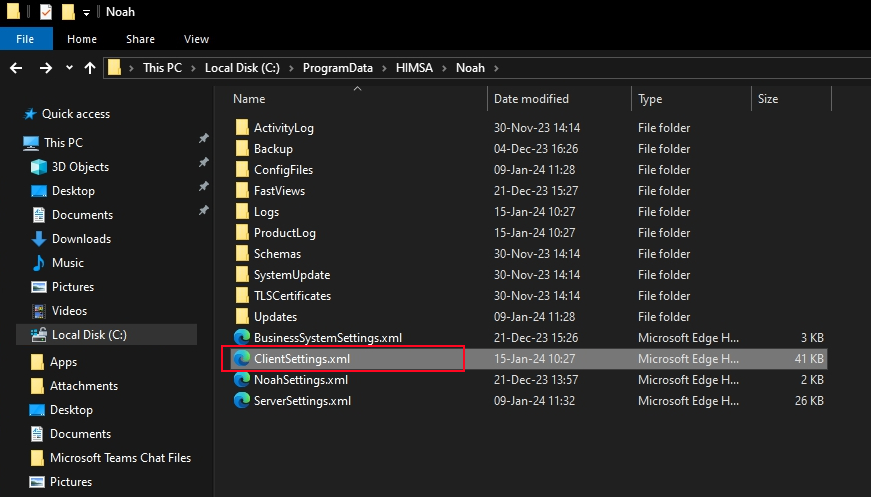
- Open File Explorer and navigate to:
C:\ProgramData\HIMSA\Noah - If the
ProgramDatafolder is not visible, enable hidden items: View → Show → Hidden items. - Locate the file named
ClientSettings.xml.
→ Check if the issue is resolved. If yes - you're done ✓. If no - continue to Step 2.
Step 2: Edit the ClientSettings.xml file
Have you opened and edited the ClientSettings.xml file successfully?
- ✅ Yes → Proceed to Step 3.
- ❌ No → Take these steps:
- Right-click
ClientSettings.xml→ Open with → Notepad (or another text editor).
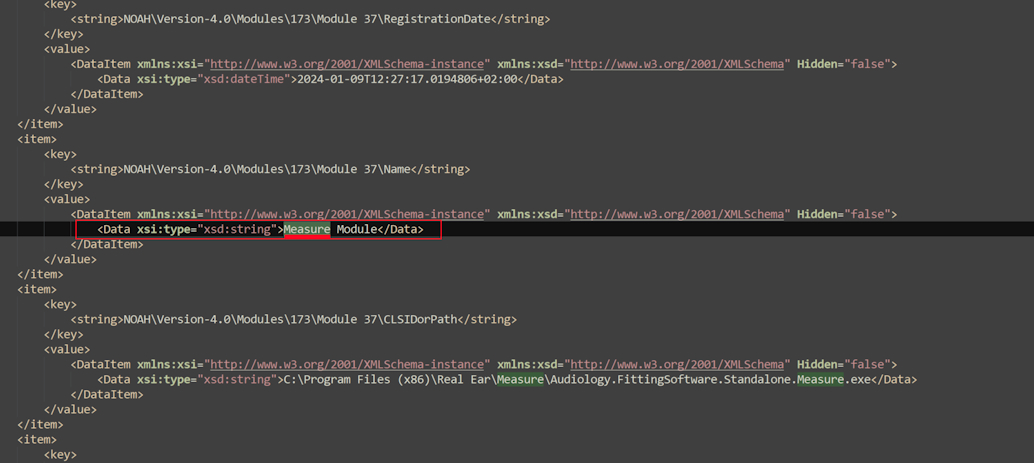
- Use Ctrl + F to search for the string related to the module name.
- Change the value from
"Measure"to"Primus". - Save the file (Ctrl + S).
⚠️ If you do not have permission to save the file, close the text editor, right-click it again → Run as administrator, then repeat the edit.
→ Check if the issue is resolved. If yes - you're done ✓. If no - continue to Step 3.
Step 3: Restart Noah
Have you closed and restarted Noah after saving the file?
- ✅ Yes → Proceed to Step 4.
- ❌ No → Close Noah completely, then relaunch it. If any errors appear during restart, note the exact message.
→ Check if the issue is resolved. If yes - you're done ✓. If no - continue to Step 4.
Step 4: Verify the module connection
Do GN Resound or other Noah modules now connect to Measure via the IMC2 protocol?
- ✅ Yes → Issue resolved - no further action needed ✓.
- ❌ No → Proceed to the escalation path below.
⚠️ Special conditions
This issue may recur after updates to Noah or GN Resound modules, as updates can overwrite the ClientSettings.xml file. If the problem returns after an update, repeat the edit in Step 2.
🔺 Escalation path
If none of the above steps resolved the issue, contact Auditdata Support.
Please have ready:
- Device model and serial number
- Device firmware version
- Software versions (Noah, Measure, and the affected module)
- Your account name and contact details
- Which steps above you already tried
- Any error messages or unusual behaviour observed
✅ Expected outcome
After editing ClientSettings.xml and restarting Noah, GN Resound and other Noah modules should connect to Measure via the IMC2 protocol without errors.
📝 Additional notes
- Always back up
ClientSettings.xmlbefore editing - incorrect changes can cause broader Noah configuration issues. - Check for software updates and compatibility patches for Noah and GN Resound modules regularly.
- Related articles: "Save action failed" error · NOAH Related - Unity/Measure Persistent Popup Issue
Need more help? Visit the Auditdata Help Centre or contact our support team.
© Auditdata - 2026