

Quick summary
The application crashes immediately when you open the Otoscopy module. This is caused by corrupt XML configuration files in the current user's Measure or Measure profile folder. The fix is to replace the corrupt files with working copies from another PC.
⚙️ Before you begin
- Access to a second PC with a working Measure or Measure installation - you'll need to copy XML files from it.
- Administrator access to the affected PC to navigate to the
ProgramDatafolder. - Back up the existing XML files before replacing them.
Step 1: Confirm the crash is Otoscopy-related
Does the application crash specifically when launching the Otoscopy module?
- ✅ Yes → Take these steps:
- Note the error report that appears when the application crashes.
- Expand or save the error report and check whether it references the Otoscopy module.
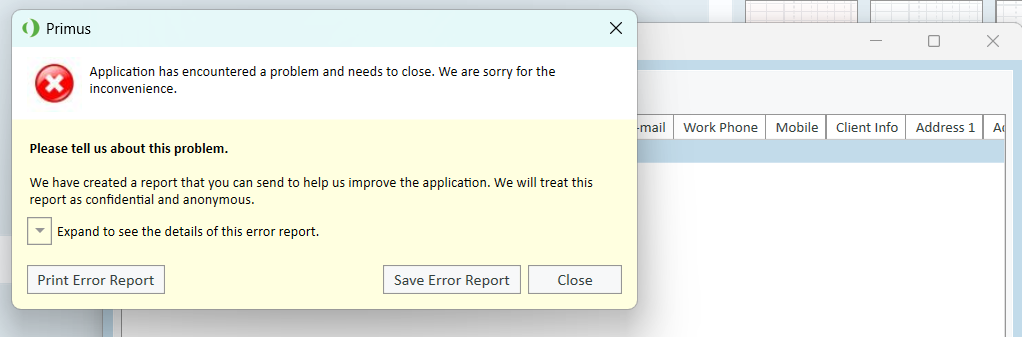
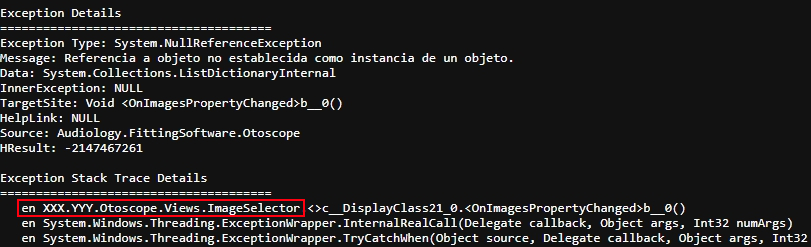
→ If the error report references the Otoscopy module - proceed to Step 2. If a different module is referenced - proceed to the escalation path. * ❌ No → If the crash happens at a different point, this article may not apply. Proceed to the escalation path below.
Step 2: Locate the corrupt XML files
Can you locate the Otoscopy configuration folder for the affected user?
- ✅ Yes → Proceed to Step 3.
- ❌ No → Take these steps:
- Open File Explorer. Enable hidden items: View → Show → Hidden items.
- Navigate to:
C:\ProgramData\Real Ear\Measure\Users\ - Locate the folder for the affected user (e.g.
Profile_XXXXXX) and open it. - Open the
AdditionalSettingssubfolder - this contains the XML files for the Otoscopy module.

Step 3: Replace the corrupt XML files
Have you copied replacement XML files from a working Measure or Measure installation?
- ✅ Yes → Paste the copied files into the
AdditionalSettingsfolder on the affected PC, overwriting the existing files. Then proceed to Step 4. - ❌ No → Take these steps:
- On a second PC with a working Measure or Measure installation, navigate to the same path:
C:\ProgramData\Real Ear\Measure\Users\Profile_XXXXXX\AdditionalSettings - Copy all XML files from that folder.
- On the affected PC, paste the copied files into the same
AdditionalSettingsfolder, overwriting the corrupt files.
Step 4: Verify the fix
Does the Otoscopy module launch correctly after replacing the XML files?
- ✅ Yes → Issue resolved - you're done ✓.
- ❌ No → Proceed to the escalation path below.
🔺 Escalation path
If the Otoscopy module still crashes after replacing the XML files, contact Auditdata Support.
Please have ready:
- Measure or Measure software version
- Error report (saved or screenshot)
- User profile name/path where the crash occurs
- Your account name and contact details
- Which steps above you already tried
✅ Expected outcome
After replacing the XML files, Measure or Measure should launch the Otoscopy module without crashing and the module should function as expected.
📝 Additional notes
- Back up the original corrupt XML files before replacing them - they may be useful for diagnostic purposes.
- This issue can occur after an improper shutdown or system crash that corrupts the profile data - avoid force-closing the application.
- Related articles: Otoscopes Integration with Measurement Instruments · Hardware error displayed in Measure
Need more help? Visit the Auditdata Help Centre or contact our support team.
© Auditdata - 2026