

Quick summary
Users hear unexpected background noise when running a Speech Test (WRS) in Measure. The cause is typically incorrect Windows sound settings - particularly audio enhancements, Spatial Sound, or Mono Audio being enabled - or Measure's masking settings being active by default. Both areas need to be checked and corrected.
⚙️ Before you begin
- Make sure the Fitting Unit 2000-1 is connected to the PC.
- Close Measure before changing Windows Sound settings, then relaunch after.
Step 1: Adjust Windows sound settings
Are audio enhancements, Spatial Sound, and Mono Audio already disabled for the Fitting Unit?
- ✅ Yes → Proceed to Step 2.
- ❌ No → Take these steps:
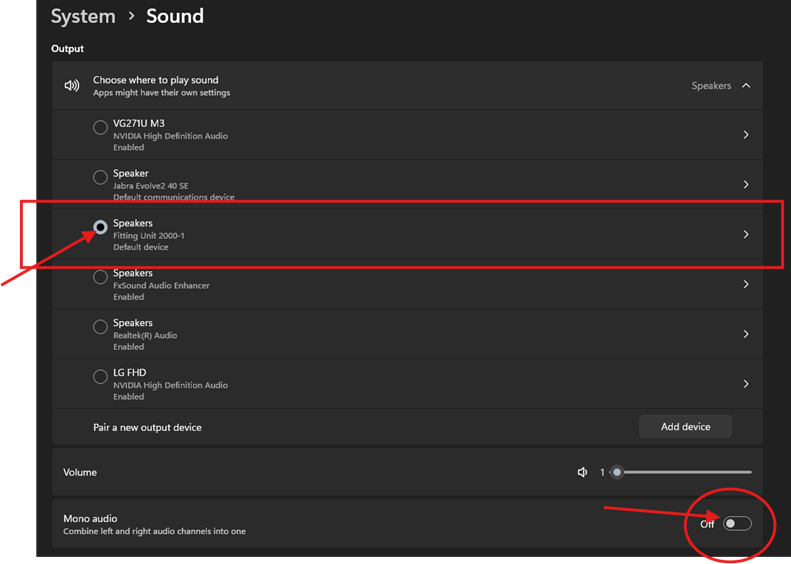
- Open Windows Settings → System → Sound.
- Set Fitting Unit 2000-1 as the default output device by selecting its radio button.
- Toggle Mono Audio to Off.
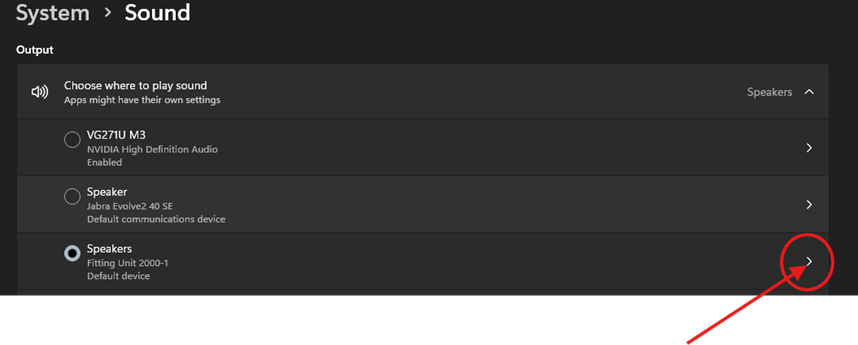
- Click the arrow next to the Fitting Unit speaker to open its detailed settings.
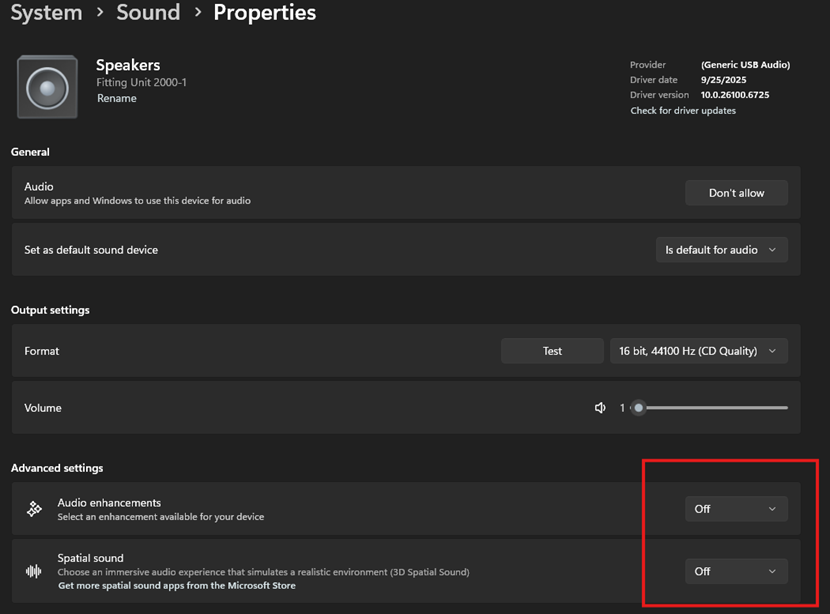
- Toggle Audio enhancements to Off. Toggle Spatial sound to Off.
→ Test Measure. If the background noise is gone - you're done ✓. If not - continue to Step 2.
Step 2: Update Measure software masking settings
Are masking options disabled in the affected speech test definition?
- ✅ Yes → Proceed to the escalation path.
- ❌ No → Take these steps:
- Open the Measure software.
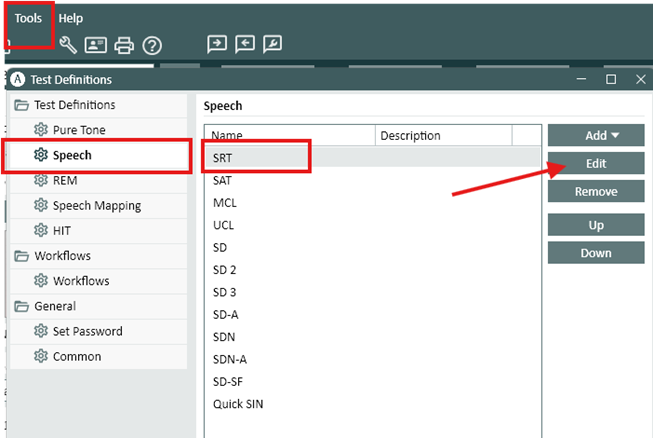
- Navigate to Tools → Test Definitions → Speech.
- Select the affected speech test definition and click Edit.
-
Uncheck both of the following options:
- Use masking from CD
- Activate masking by default
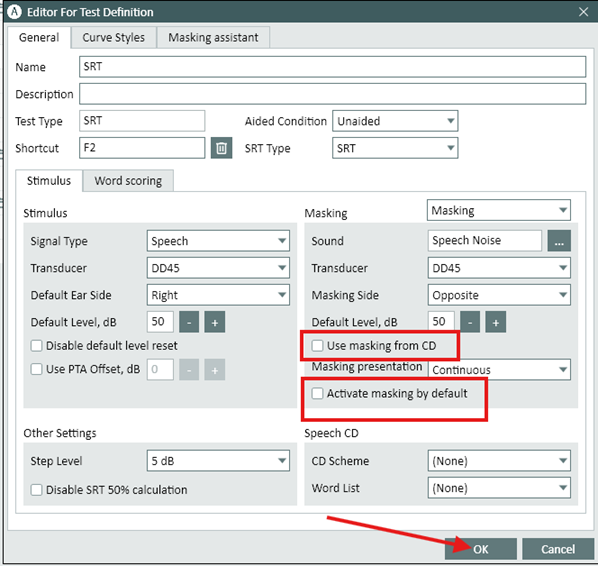
- Click OK, then select Yes to confirm and apply the changes.
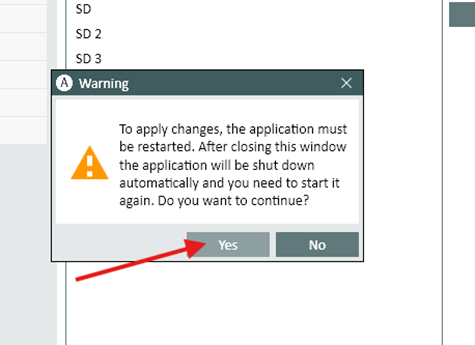
- Measure closes automatically - relaunch it and run the Speech Test again to verify.
→ Check if the issue is resolved. If yes - you're done ✓. If no - proceed to the escalation path below.
⚠️ Special conditions
If noise persists after completing both steps, restart the workstation to ensure all audio configurations are fully refreshed, then repeat the speech test. If noise occurs on multiple workstations, this may indicate a hardware issue rather than a software configuration problem.
🔺 Escalation path
If background noise persists after completing both steps, contact Auditdata Support.
Please have ready:
- Measure software version
- Fitting Unit 2000-1 firmware version
- Windows version
- Your account name and contact details
- Which steps above you already tried
- Whether the issue occurs on one workstation or multiple
✅ Expected outcome
After completing these steps, the Speech Test should run without background noise. The Fitting Unit 2000-1 operates as the sole default audio device with no enhancements, and masking is not applied by default in the test definition.
📝 Additional notes
- Verify that no third-party audio enhancement tools (such as Waves MaxxAudio or DTS Sound) are active - these can reintroduce background noise.
- Windows updates may reset audio enhancement settings - check Sound settings again after any major update.
- Related articles: Deleting Waves Maxx Audio driver from Windows audio drivers · Audio Drivers Re-installation in Windows (Speaker Soft Sound Issue) ·
Need more help? Visit the Auditdata Help Centre or contact our support team.
© Auditdata - 2026